Contents
Short answer
In AVIA, Lean is practised on five screens: the 5S audit by area (80% compliance threshold), the suggestion box, the SMED study with its current, target and achieved times, kaizen projects with their four-zone A3 sheet, and OEE per workstation (Quality › OEE/TRS dashboard) with an adjustable target and alert threshold. To hold the discipline, the business rule “Excessive scrap rate” compares the declared scrap rate with the workstation's reference plus a margin, in warn or block mode, after a 90-day simulation.
Articles on Lean explain the tools. This one shows where each is practised in AVIA: which screen to open, which indicator to read, which business rule to switch on so that the discipline holds. The running example is a demonstration machine-building workshop (press brake, laser cutting, welding, wiring); every screenshot comes from the portal, on that fictitious company.
Before you start: three prerequisites
- Your workstations declared (Production › Workstations): OEE is calculated workstation by workstation, and the target is set on the workstation record.
- Operation confirmations and machine stops entered or received: stops are keyed in or arrive from a signal source linked by API key; this is what the server draws availability, performance and quality from. Without them, OEE shows “—”, not 0%.
- The Lean module (Lean Management menu), which brings four tabs together on a single screen: 5S, Suggestions, SMED and Projects.
1. Sort, set in order, shine: the 5S audit by area, in the Lean Management menu, 5S tab
An audit covers an area (a workshop, a hall, a store). It consists of twenty-five criteria, five per “S” — Seiri, Seiton, Seiso, Seiketsu, Shitsuke — scored from 1 to 4. A comment is mandatory for a score of 2 or less. The score of each S and the total are calculated live; the total is the average of the five. From 80%, the area is “Compliant”; below, it becomes “Needs action”.
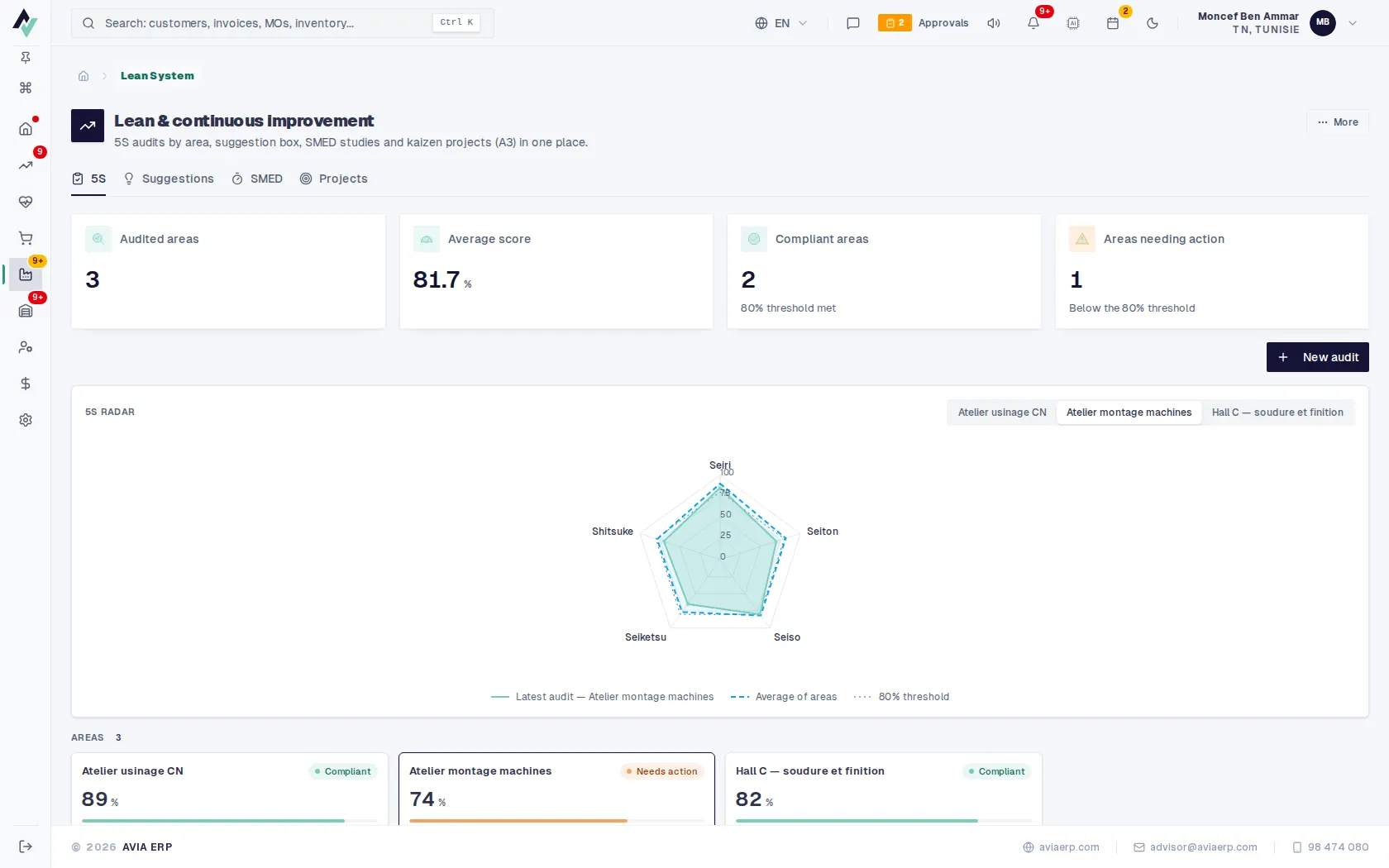
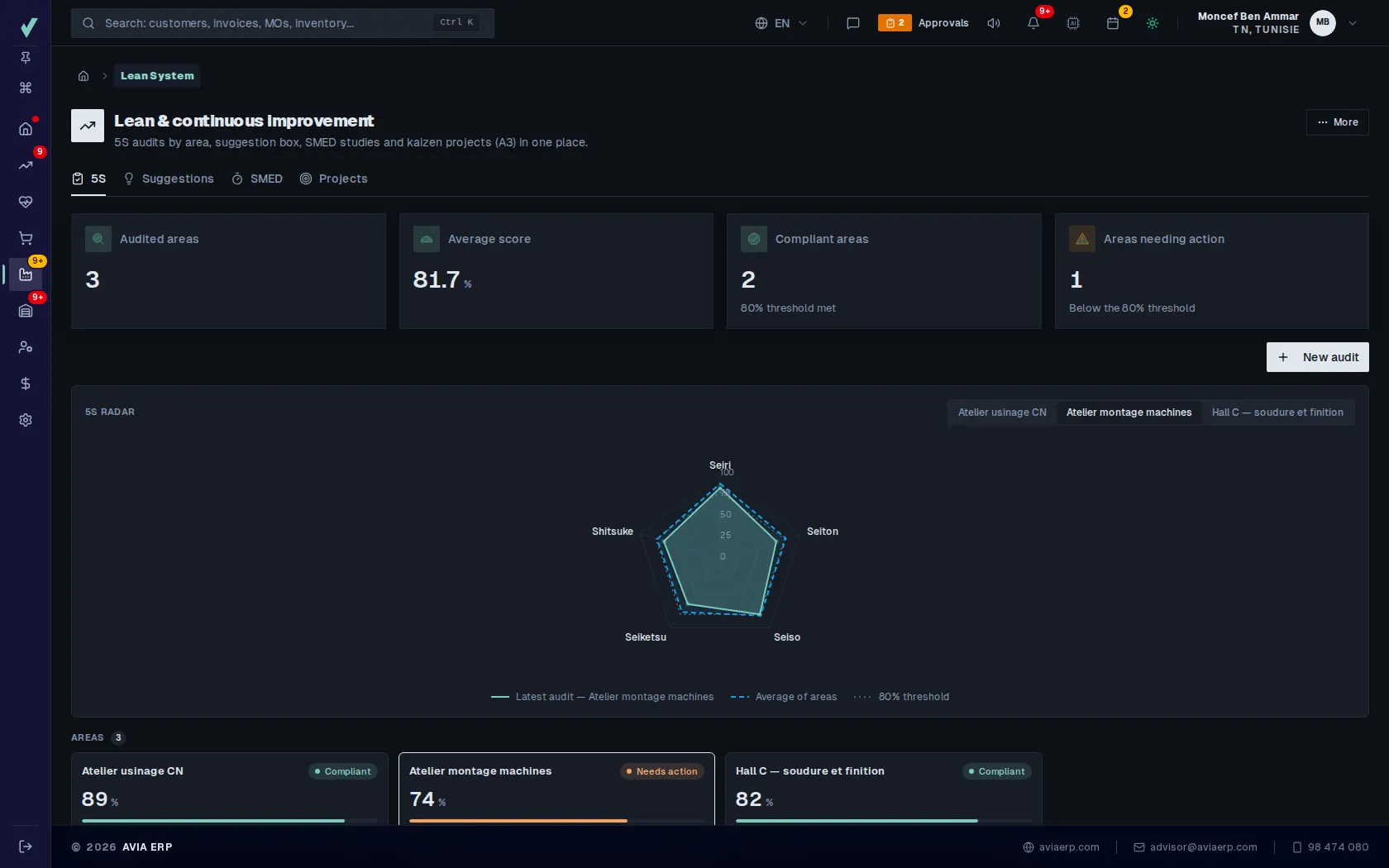
The screen gives the number of audited areas, the average score, the compliant areas and those that need actions. The radar shows the latest audit of the chosen area, with the average of areas and the threshold as dotted lines. Each audit keeps an “Action plan” field in free text: this is where you write what is decided, by whom and by when.
2. Capture ideas from the shop floor: the suggestion box
The Suggestions tab is a board with six columns: Submitted, Under evaluation, Accepted, Implemented, Closed, Rejected. A card moves forward in order; moving to evaluation requires nothing, but accepting requires impact and effort (from 1 to 5) and an owner — the deadline and the estimated gain stay optional —, rejecting a reason, closing the observed gain. The tiles at the top total the estimated gain of suggestions accepted or beyond, and the observed gain once closed.
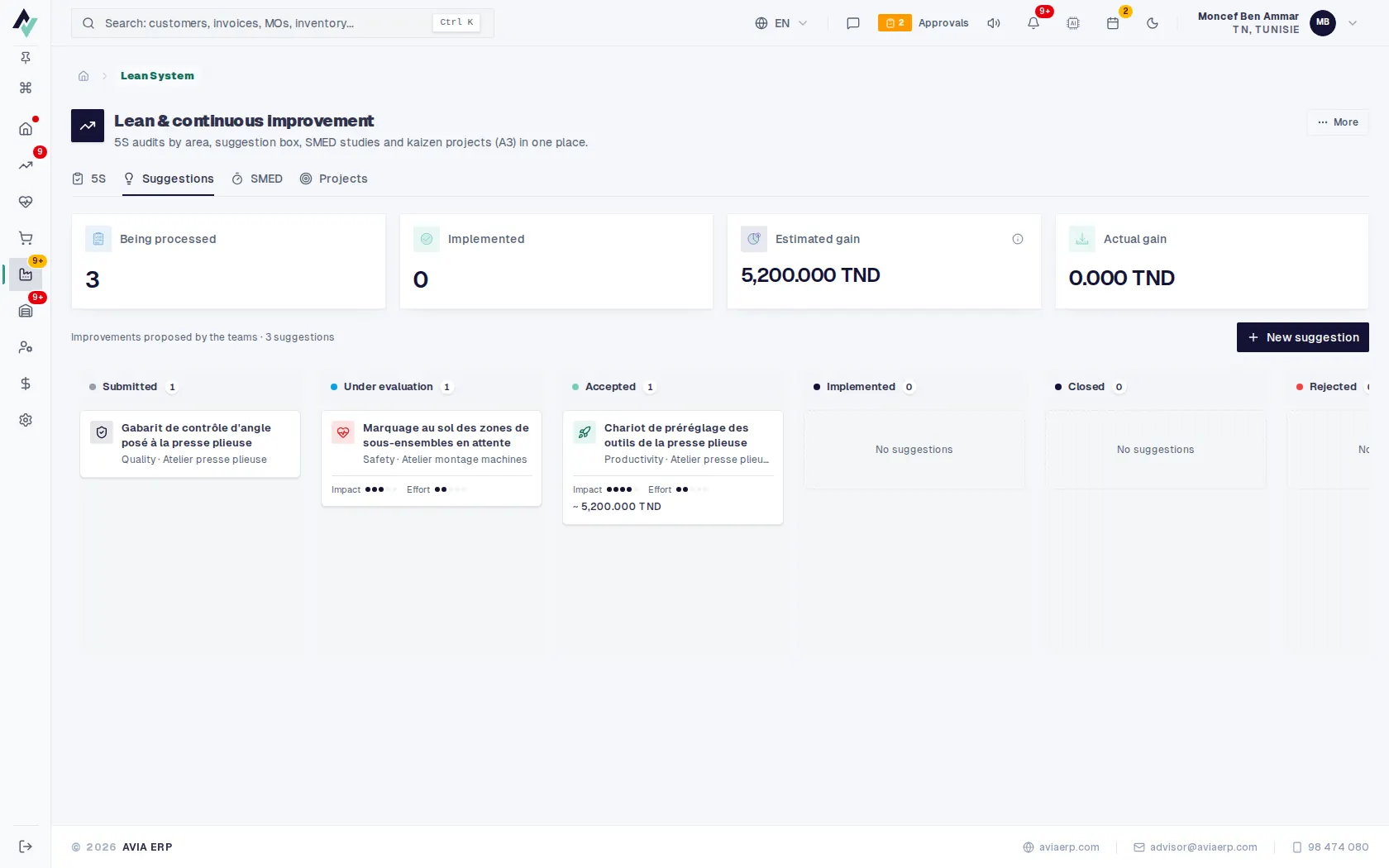
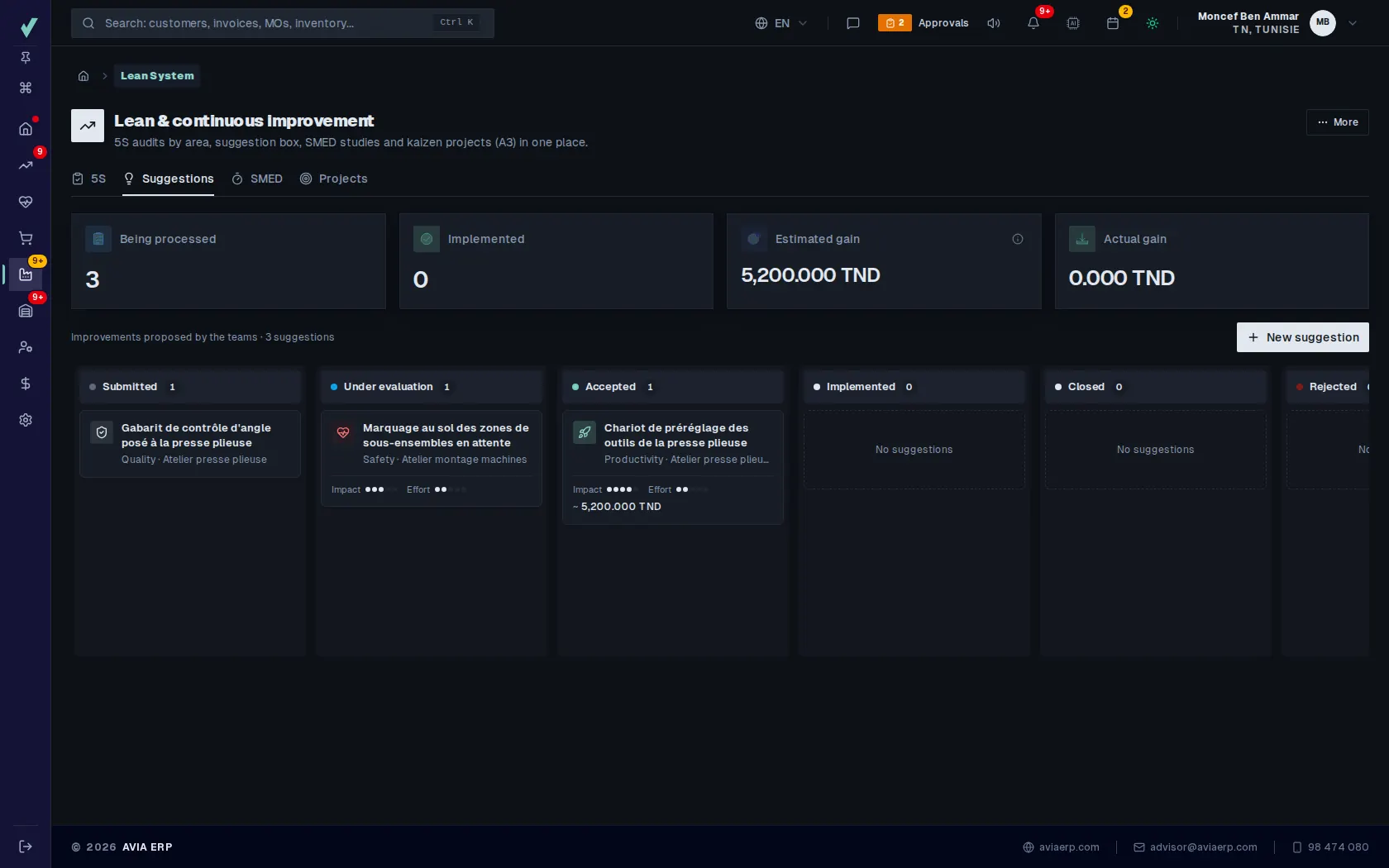
Two safeguards come from the database, not from the screen. Whoever submits a suggestion cannot evaluate it or decide on it themselves: a second user moves it forward. And an accepted suggestion can be turned into a corrective action (the “Create a CAPA” button, which requires an owner and a deadline if the suggestion is linked to a non-conformity): the idea then enters the quality loop.
3. Shorten changeovers: the SMED study
The SMED tab keeps one study per changeover and per workstation: a current time, a target time and an achieved time, in whole minutes. The reduction is calculated by the database, and a bar shows progress towards the target. The status follows the study: Analysis, Implementation, Completed, Tracking. A panel recalls the four steps of the method — observe, separate, convert, streamline.
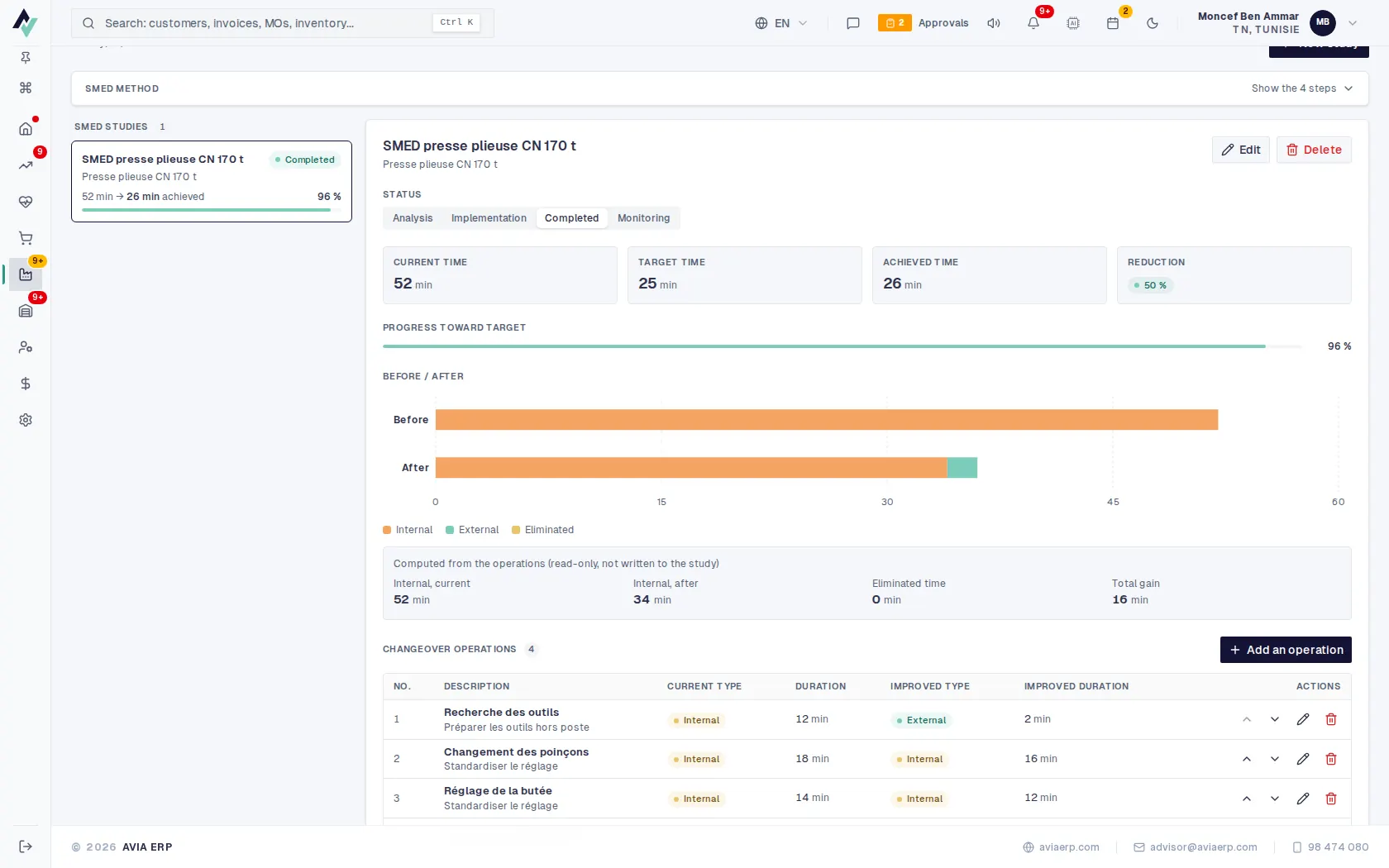
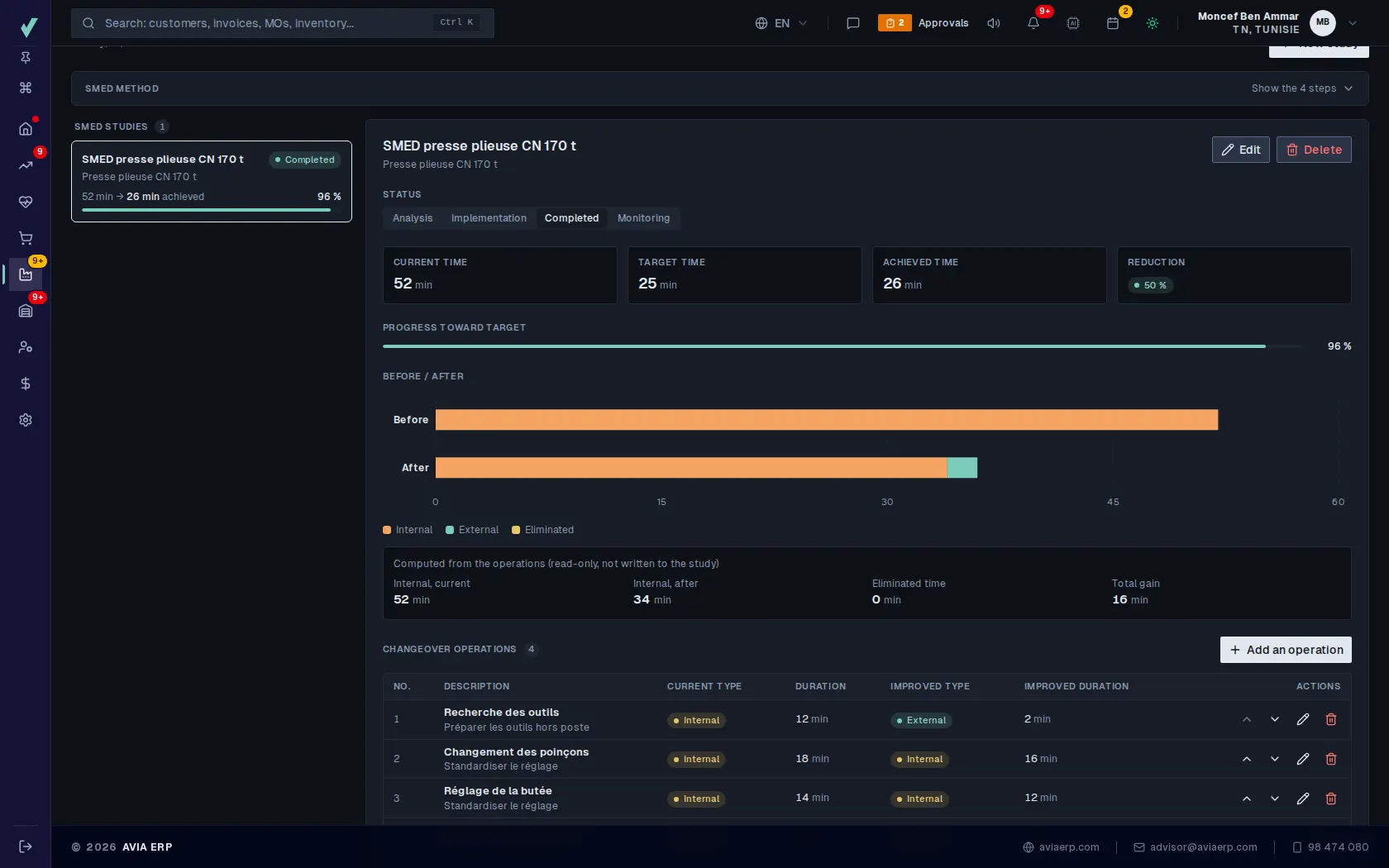
The heart of the method is the operations table. Each operation has a type — internal (machine stopped) or external (can be done while the machine runs) — and a duration, then an “improved” type and duration, or “eliminated” if the operation disappears. Below the chart, a “calculated from the operations” block gives the internal time before and after, the time eliminated and the total gain; it is read-only and is not copied back into the study. On the screenshot, the first operation (looking for tools) becomes external: it is now prepared while the machine runs.
4. Carry the kaizen: a project and its A3 sheet
The Projects tab accepts the types Kaizen, A3, PDCA, Six Sigma (DMAIC), Lean, SMED, Quality and Safety. The project carries a quantified objective (current value, target value, unit), a deadline, an estimated gain, then an actual gain; the list filters by status and by type. Expand the row of a kaizen or A3 project: the A3 sheet appears in four zones — Problem, Root cause, Countermeasure, Result.
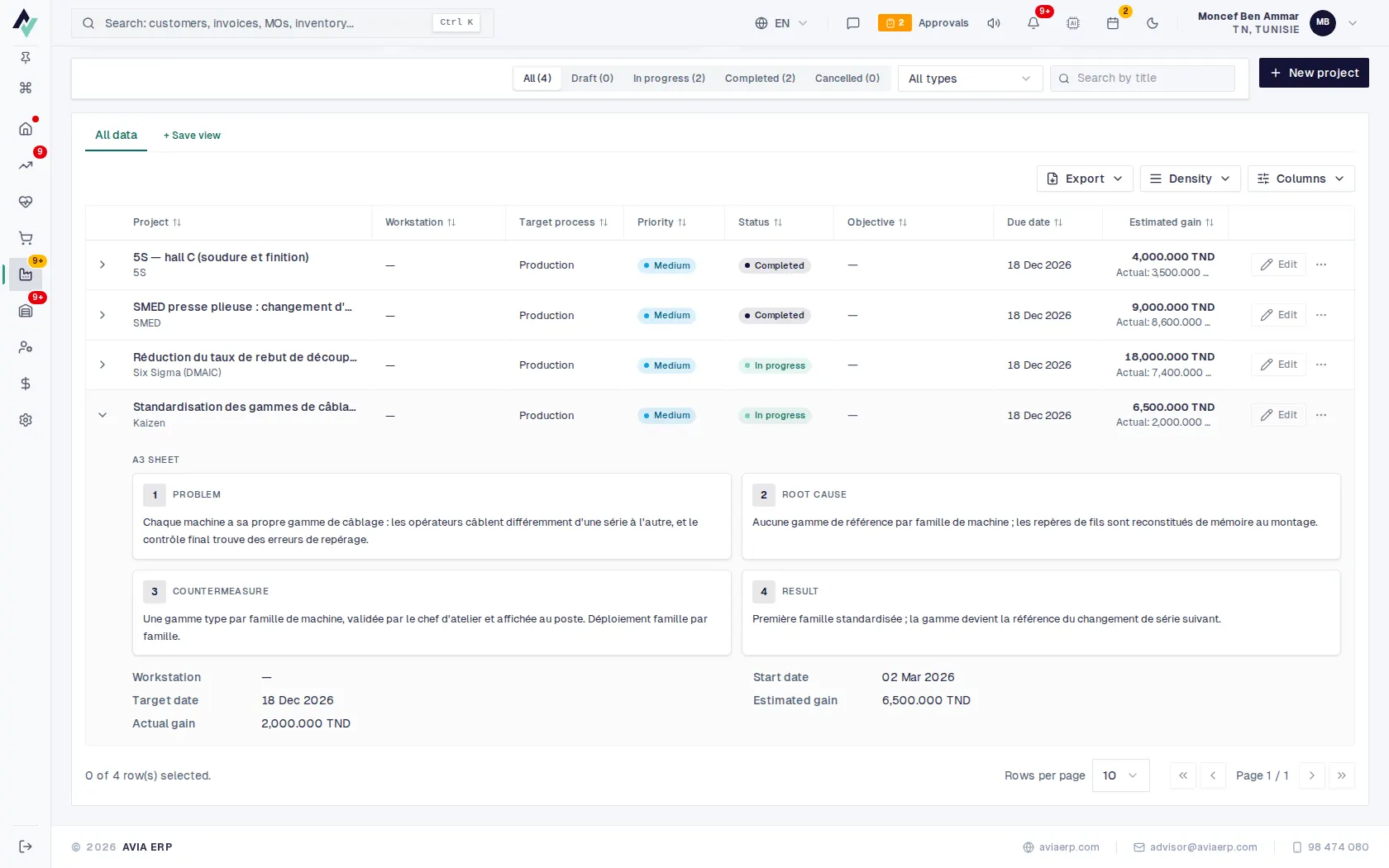
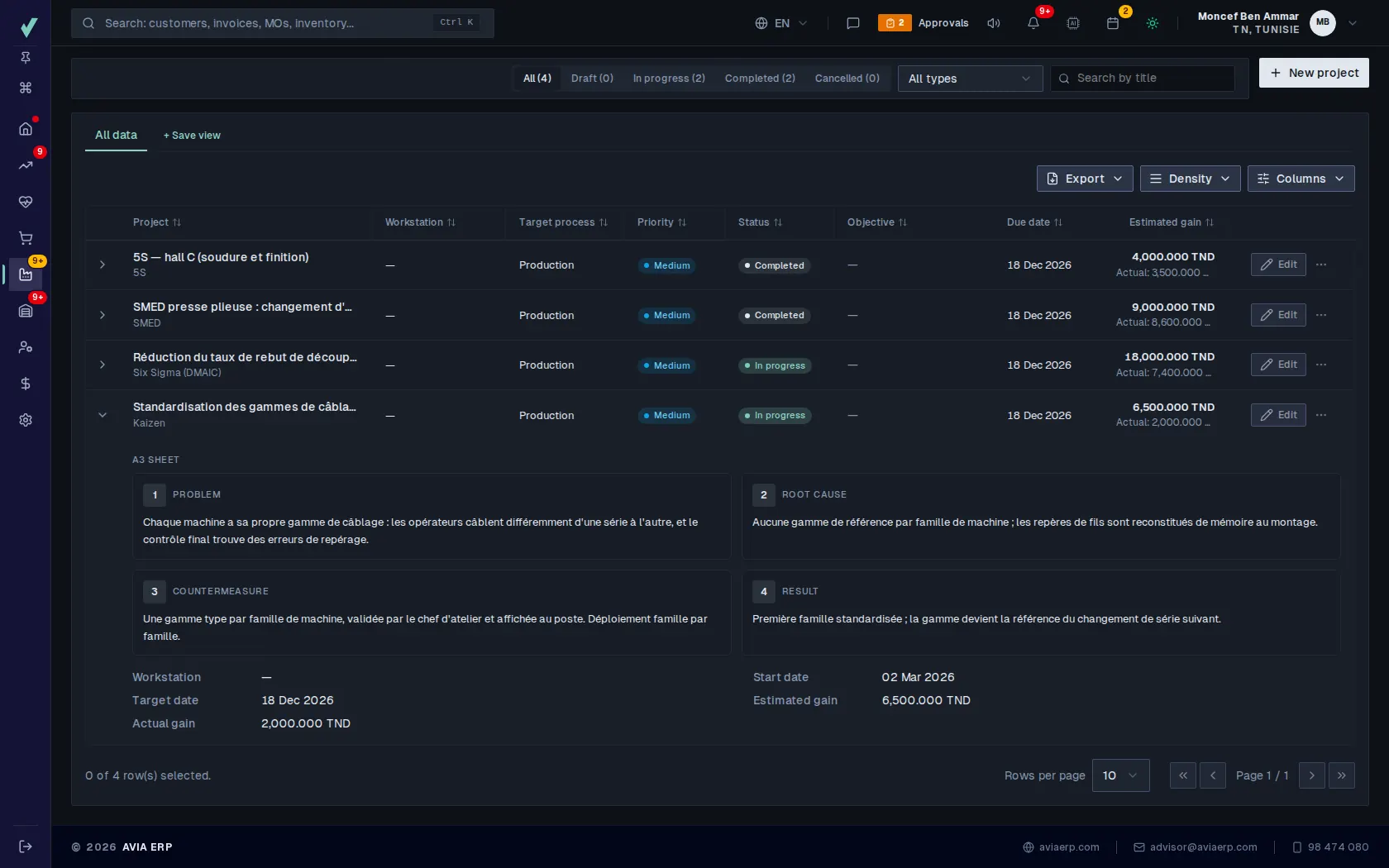
The four zones are free text: AVIA files the approach next to the project's figures, it does not dictate it. For the same reason, the root cause is dug into elsewhere, in the non-conformity's cause analysis (successive whys, Ishikawa) — see Six Sigma in AVIA: a step-by-step DMAIC.
5. Measure OEE by workstation, in Quality › OEE/TRS dashboard
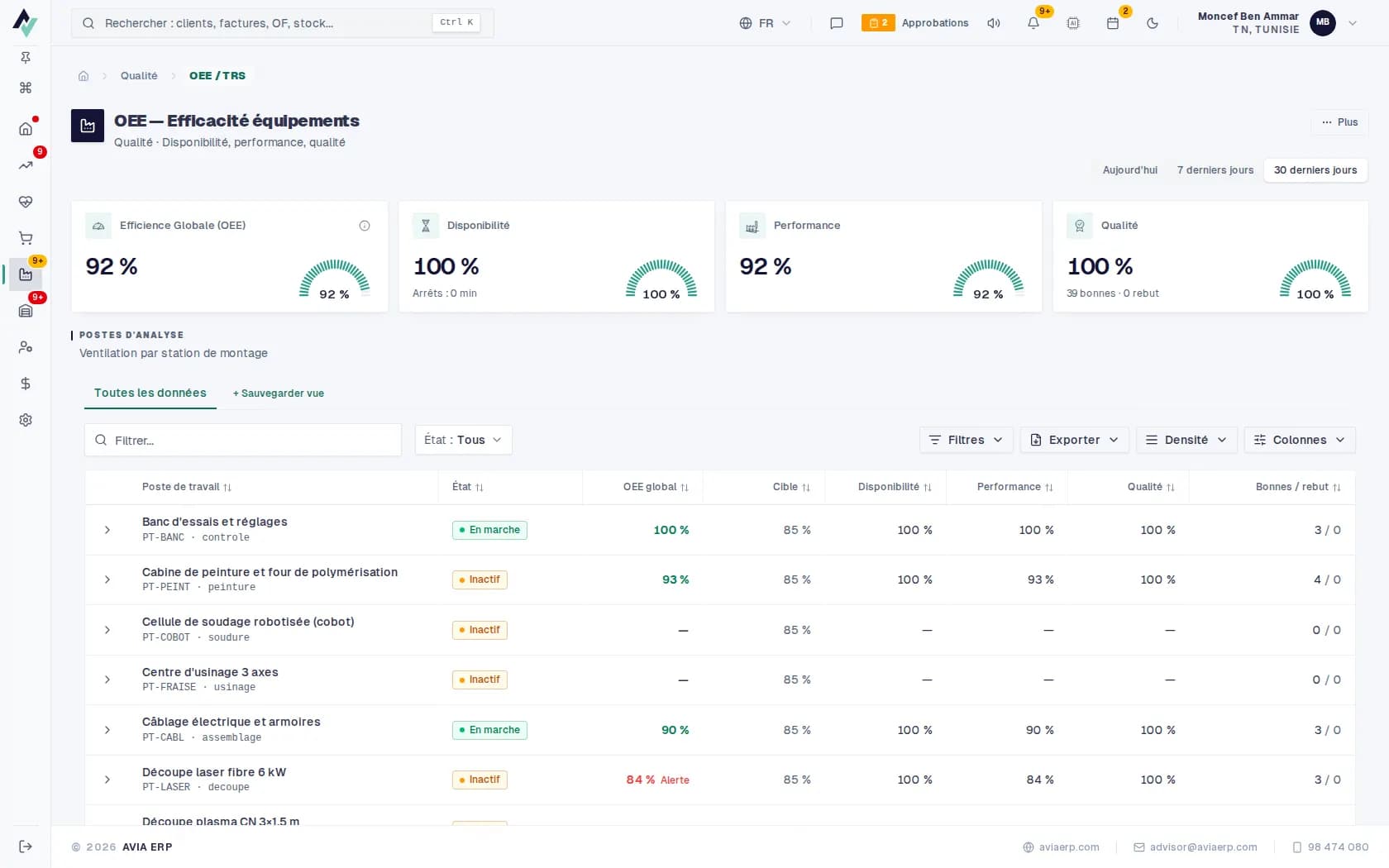
The page shows four cards — overall effectiveness, availability, performance, quality — over today, 7 or 30 days, then one line per workstation. The server calculates OEE: availability × performance × quality, from operation confirmations and machine stops. A line expands the workstation detail: good parts and scrap, actual and target cycle, opening, run and stop time, stops by cause. Further down, the trend over the last 14 days and the stops by cause over the period.
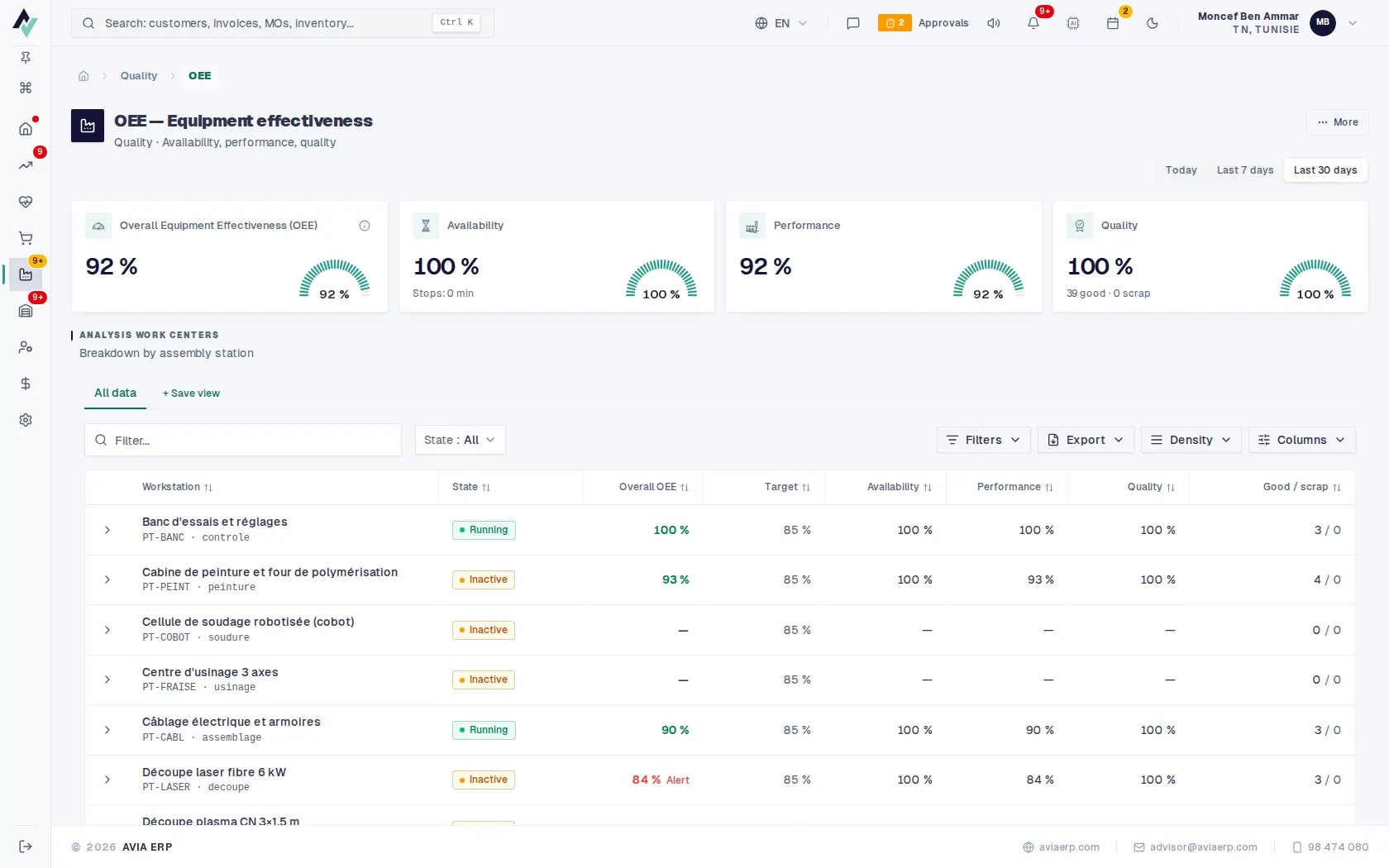
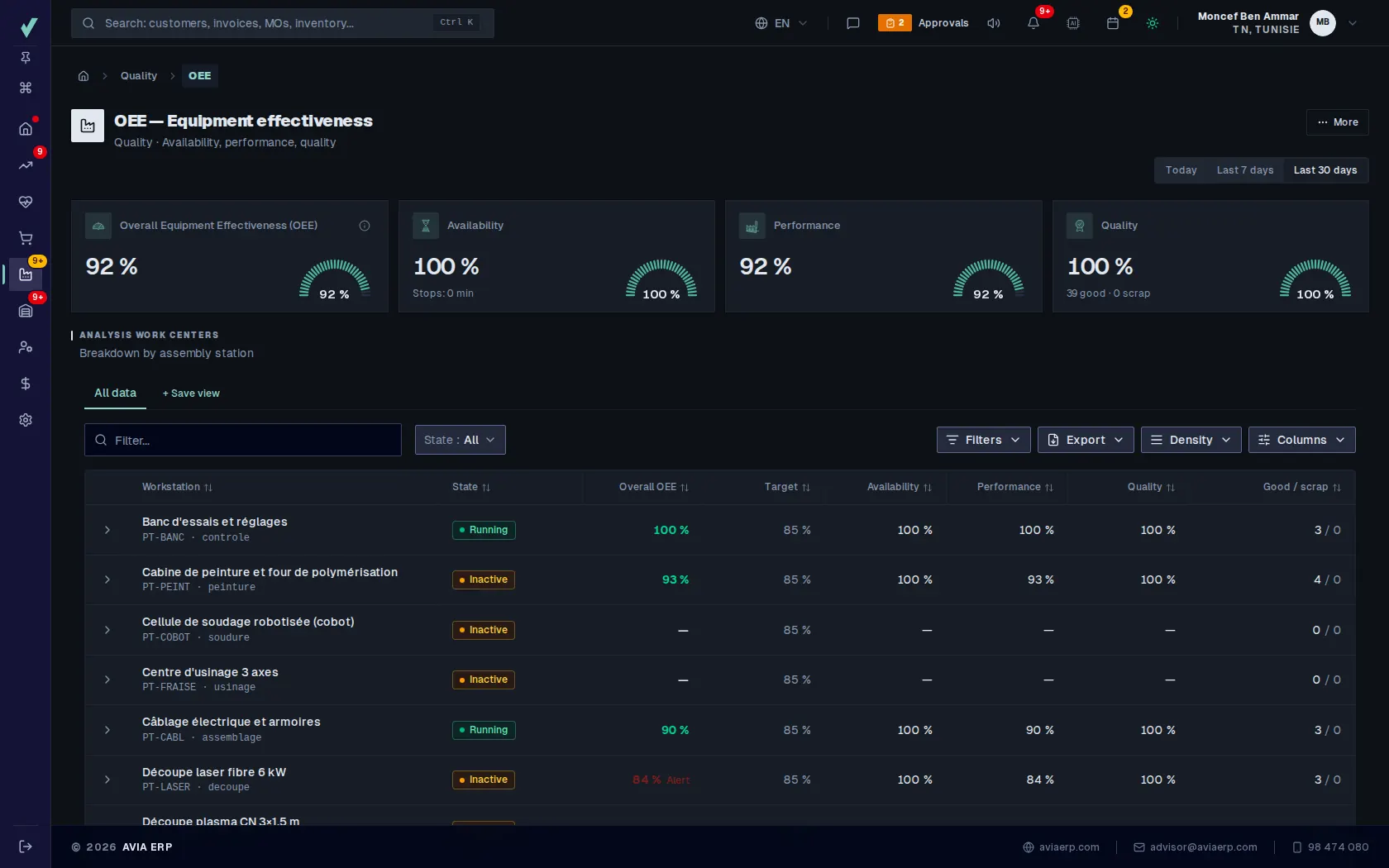
The target and the alert threshold are set per workstation, on the workstation record (fields “OEE target (%)” and “OEE alert threshold (%)”). Empty target: 85%. Empty threshold: it equals the target, and it must stay lower than or equal to it. A workstation below the alert threshold is marked “Alert”; between the threshold and the target, it is “Watch”. Colour is never alone: a word goes with it. On the screenshot, the laser cutting threshold was not set, hence the alert from 84%.
6. Hold the discipline: the “Excessive scrap rate” rule
Measuring is not enough: you still have to react when scrap drifts. In Settings › Business rules, the Excessive scrap rate type compares the scrap rate declared on a production or operation confirmation (scrap / (good + scrap)) with the workstation's reference scrap rate — the “Scrap rate (%)” field of its record — plus a tolerance margin in percentage points. Beyond it, the confirmation is flagged or refused depending on the mode: warn (logs and lets it through) or block (refuses the write).
One thing to know: as long as no rule of this type is saved and active, the check does not apply — filling in the workstation's reference rate is not enough. As with any rule, simulate first: the button replays the rule on the documents of the last 90 days, writing nothing.
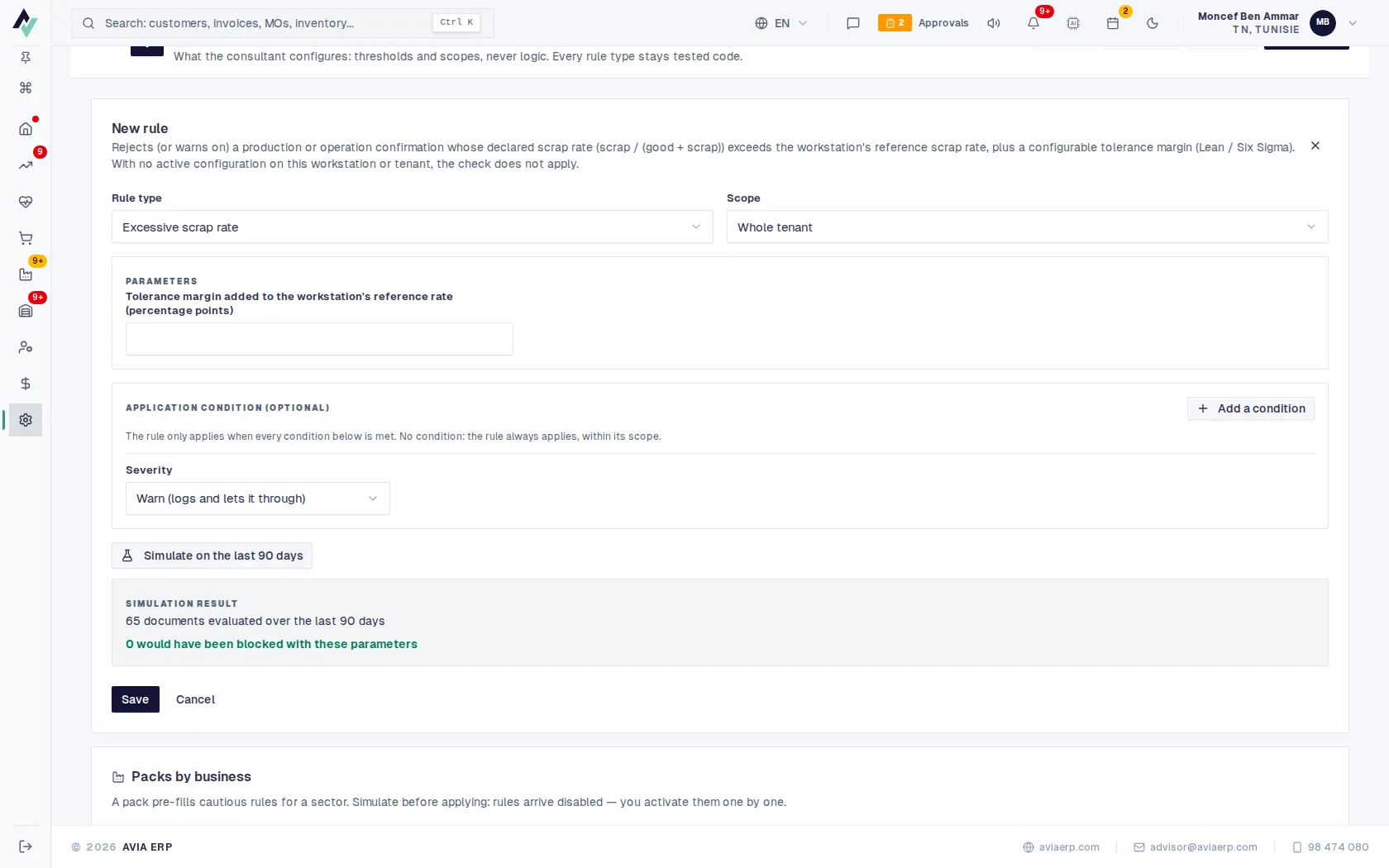
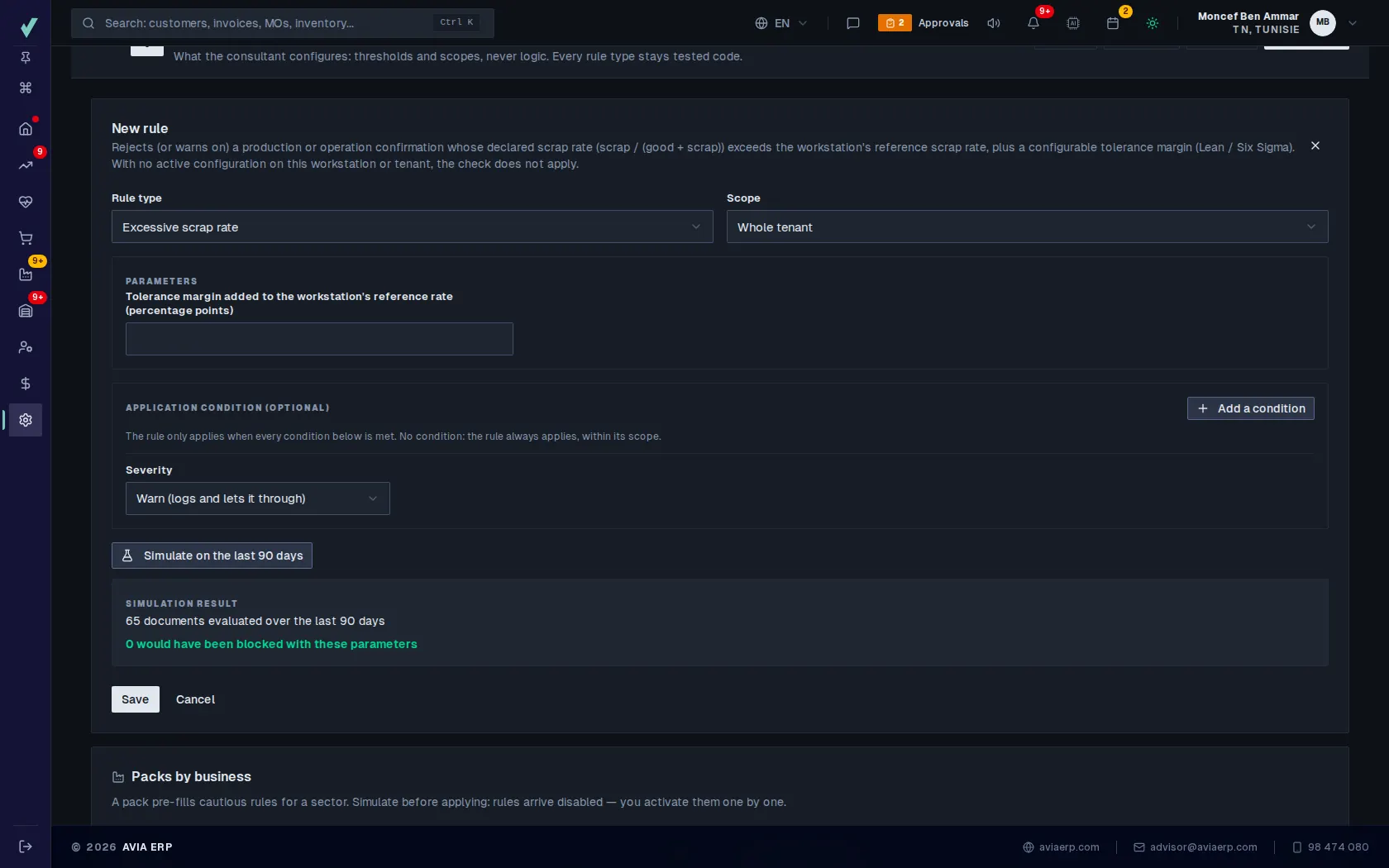
Start in warn mode: every excess is logged and counted, without hindering the workshop. Once the team has got the habit, switch to block. The message displayed names the workstation, the observed rate and the reference, margin included.
By sector: the workshop rule packs
In Settings › Business rules, AVIA offers packs by business. A pack arrives with its rules switched off: “Simulate” quantifies what each rule would have stopped before any application, then “Apply pack” sets them, to be activated one by one. None of them is a Lean pack: they lay the foundation of a workshop.
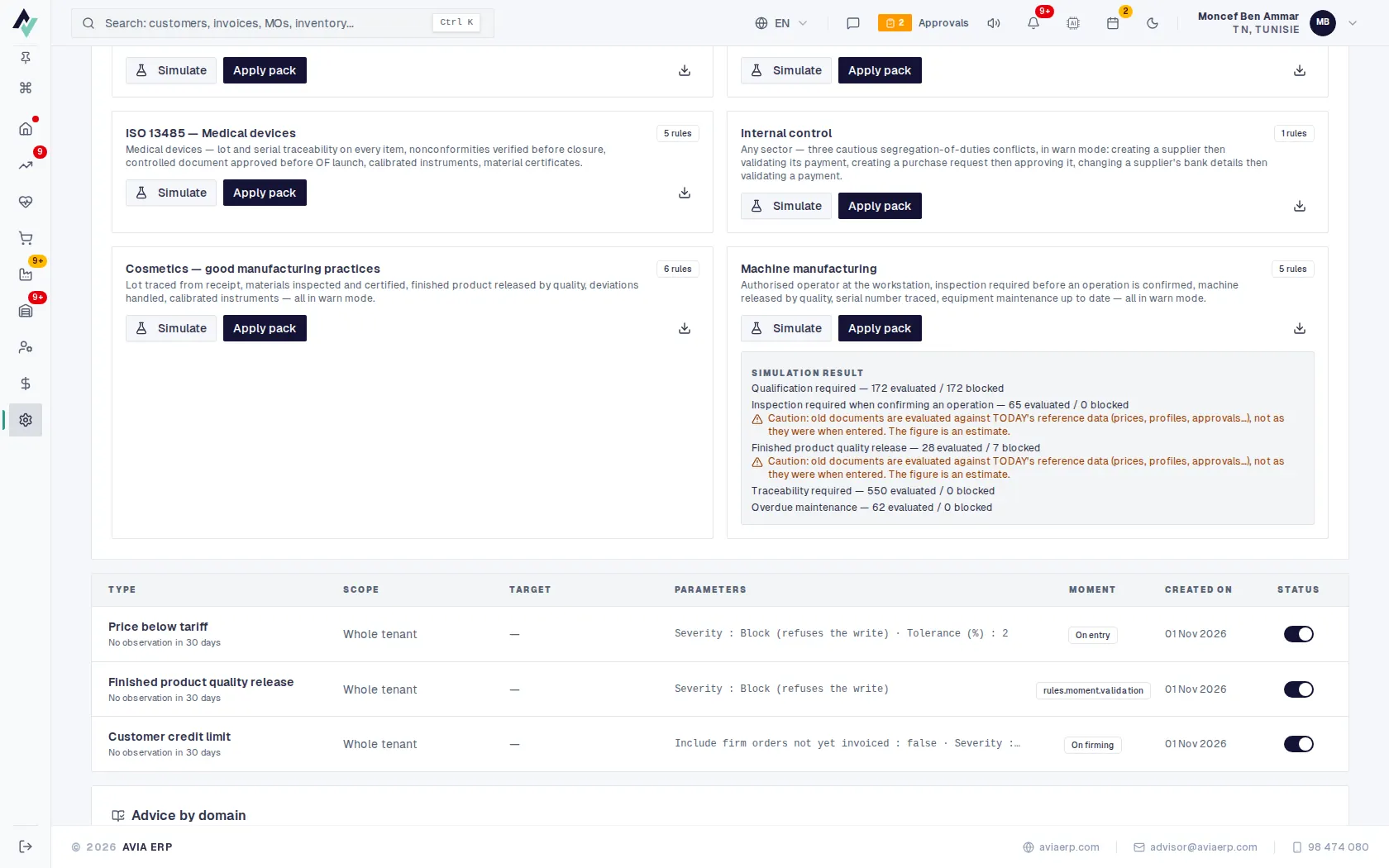
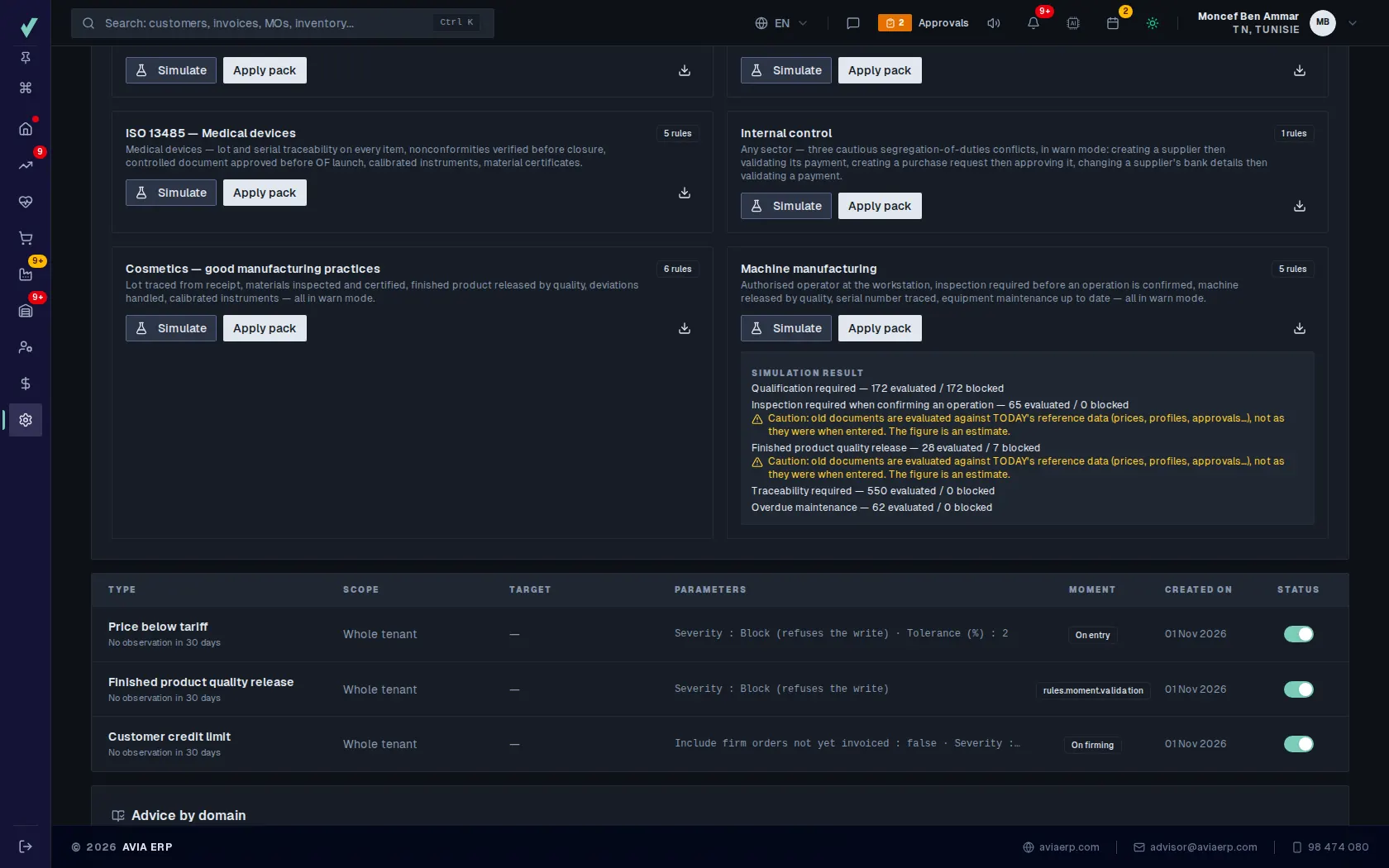
The “Excessive scrap rate” rule is part of none of these packs: you add it separately, as in step 6.
Summary: from the Lean tool to the AVIA screen
| Lean tool | AVIA screen | Rule or indicator | What you see |
|---|---|---|---|
| 5S | Lean Management menu, 5S tab | 80% compliance threshold, score of each S | Radar per area, areas compliant or “Needs action” |
| Kaizen, idea box | Lean Management menu, Suggestions tab | Six-status workflow, submitter distinct from the evaluator, estimated then observed gain | Board by column, gains at the top, link to the corrective action |
| SMED | Lean Management menu, SMED tab | Current, target, achieved time; internal, external, eliminated operations | Reduction in %, before / after chart, total gain |
| A3, PDCA, kaizen | Lean Management menu, Projects tab | Quantified objective, estimated and actual gain, four A3 zones | A3 sheet expanded under the project row |
| OEE / TRS | Quality › OEE/TRS dashboard | Availability × performance × quality; target (85% by default) and alert threshold per workstation | Cards, table per workstation, words “Alert” or “Watch”, trend, stops by cause |
| Zero defects, quality at the source | Settings › Business rules | “Excessive scrap rate” rule (workstation reference rate + margin), warn or block mode, 90-day simulation | Confirmation flagged or refused, with the workstation, the observed rate and the reference |
| Foundation of a machine workshop | Business rules › Packs by business | “Machine manufacturing” pack (five rules, warn mode) | Simulation result rule by rule, rules set switched off |
What AVIA does not do for you
AVIA has no value stream mapping (VSM), no andon, no mistake-proofing (poka-yoke), no total productive maintenance (TPM) module and no screen dedicated to tracking waste: a Gemba sheet only offers a free field “Identified waste (Muda)”. A 5S audit creates no action by itself: the action plan is a free field, and the link with a corrective action is made from a suggestion. The A3 sheet and the project zones are free text. The workshop Kanban exists (a board of manufacturing orders by status, with work-in-progress limits), but not the card-based replenishment kanban, which remains a physical signal that the server does not calculate; to pull flows, an item's planning also offers decoupling buffers (DDMRP), tracked in the requirements calculation. Finally, OEE depends on the quality of your stop and confirmation entries: a correct figure requires correct entry.
Going further
The SMED method itself is detailed in SMED: what your changeovers really cost you, and the choice between Lean and Six Sigma in Lean or Six Sigma: is your problem lead time or variation?. To run a DMAIC with the same quality screens, see Six Sigma in AVIA. How rules work (scopes, modes, packs, simulation) is described in the business rules documentation and on the business rules page; the overview of the approach is on Lean Six Sigma. AVIA is designed to support a continuous improvement effort; it does not replace it.