Contents
Short answer
In AVIA, occupational health and safety is kept in a seven-tab module (Quality › HSE dashboard): register of accidents and near misses with a non-conformity opened at the severity threshold, risk assessment document published and revised, PPE, medical visits (fitness only) and work permits. Two business rules, valid required PPE and up-to-date medical visit, check a permit's workers, in Observe mode by default then Block. AVIA is designed to support an ISO 45001 effort; it is not certified.
Articles on ISO 45001 describe what an occupational health and safety management system must contain. This one shows where each piece lives in AVIA: which screen to open, which business rule to switch on, and what you see next. AVIA is designed to support an ISO 45001 effort; it is not certified and replaces neither your own analysis nor your occupational physician. The screenshots come from the portal, on two fictitious demonstration companies.
Before you start: what the module contains
Everything sits in Quality › HSE dashboard, with seven tabs: Dashboard, Accidents, Risk assessment, PPE, Work permits, Medical & training, Settings. Two settings are worth doing first (Settings tab):
- Hours worked, one line per month. They are the denominator of the frequency and severity rates: without hours, the rates are not computed — they do not equal zero.
- The thresholds: minimum severity from which an event opens a non-conformity, alert lead times (PPE, visits, training, review of the risk assessment), visit frequency, maximum duration of a permit.
1. Report and follow events, in Accidents
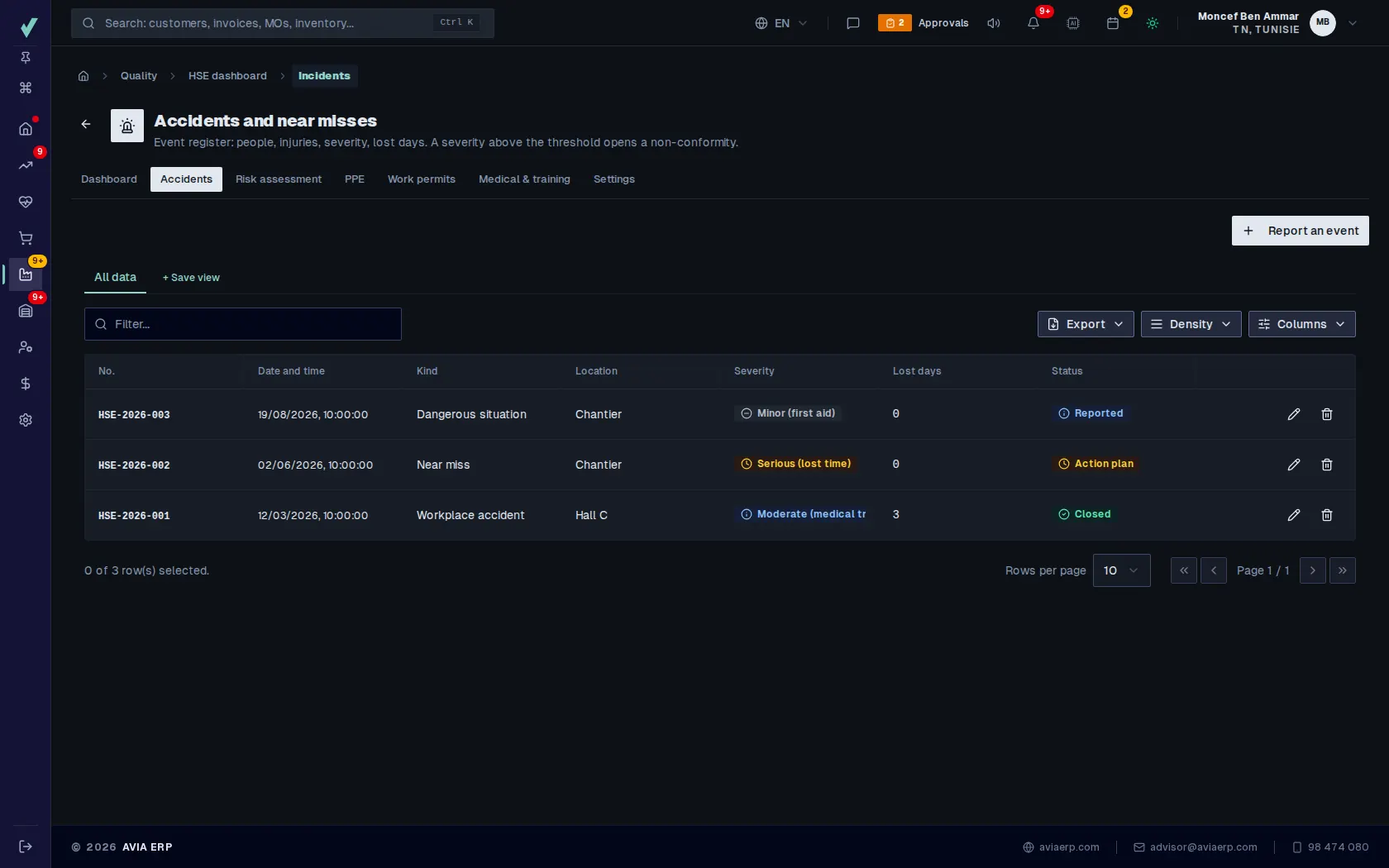
The register accepts five kinds: workplace accident, commuting accident, near miss, dangerous situation, occupational disease. Each event carries a location, a description, an immediate measure and a four-level severity, from “Minor (first aid)” to “Critical (disability, fatality)”. For a near miss, the severity entered is the potential severity.
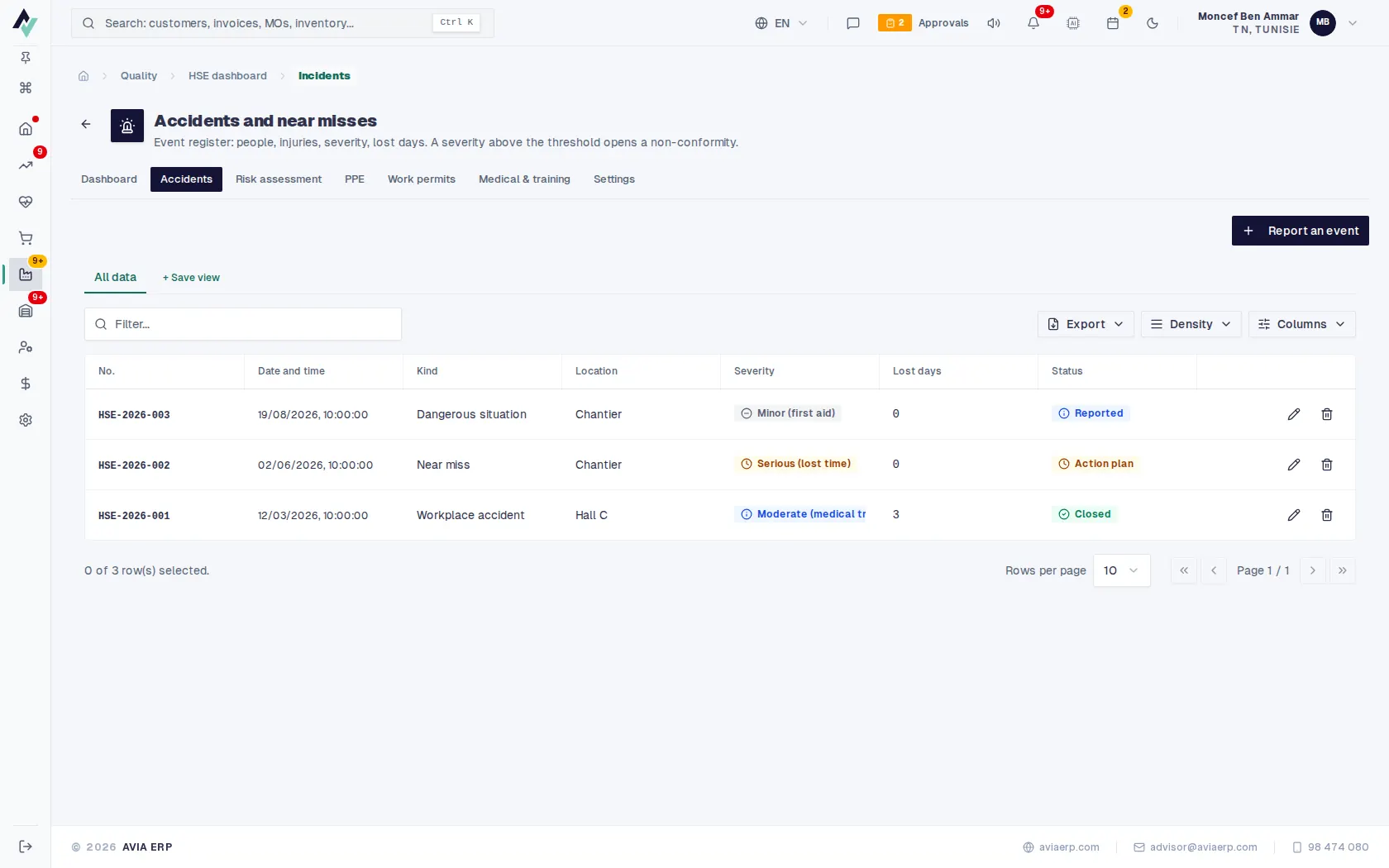
Open an event: the record lists the people concerned (injured, witness, involved), their injury and its location. The lost days of the event are the sum of those of the injured persons, calculated by the database; a near miss never carries any.
2. From accident to non-conformity and corrective action
When the severity reaches the threshold in Settings (“serious” by default), AVIA opens one non-conformity linked to the event; below it, the record offers an “Open an NC” button. The root cause is not handled in the register: it is handled on the non-conformity, with the successive whys, the Ishikawa and the corrective actions described in the article on DMAIC.
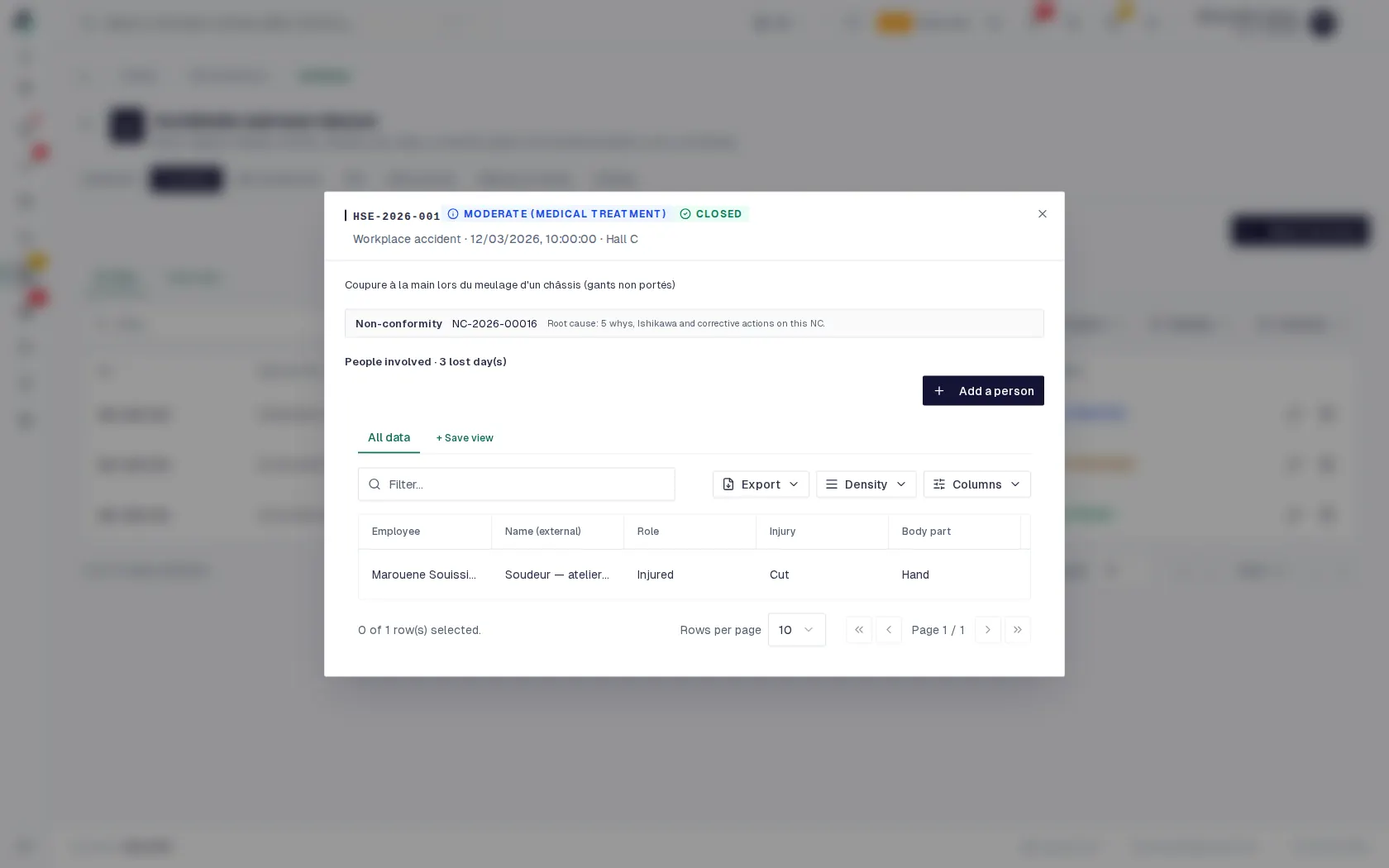
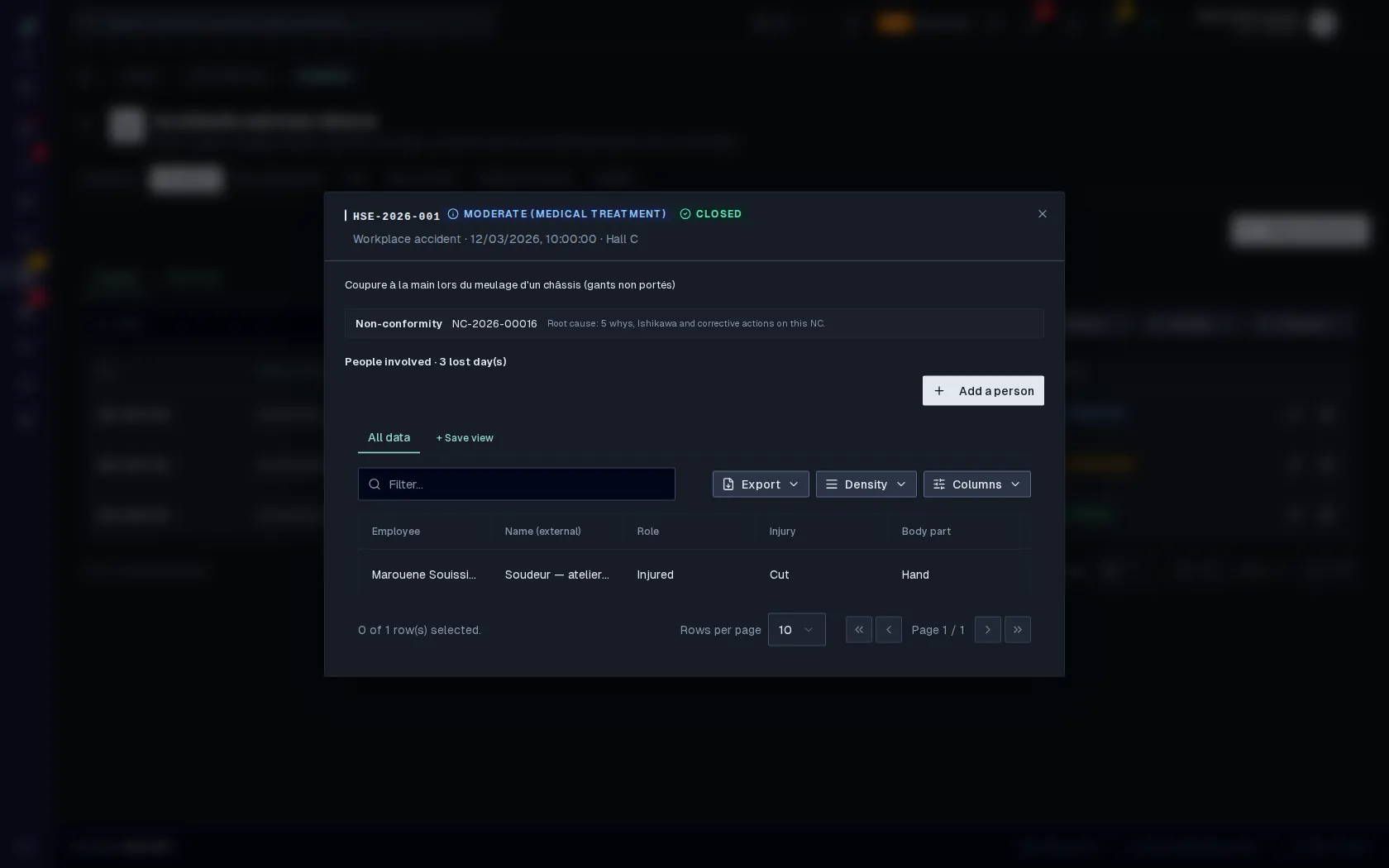
This link is what makes the approach verifiable: the accident is not filed away, it becomes a case with an owner, an action and a verification.
3. Read the indicators, in the Dashboard
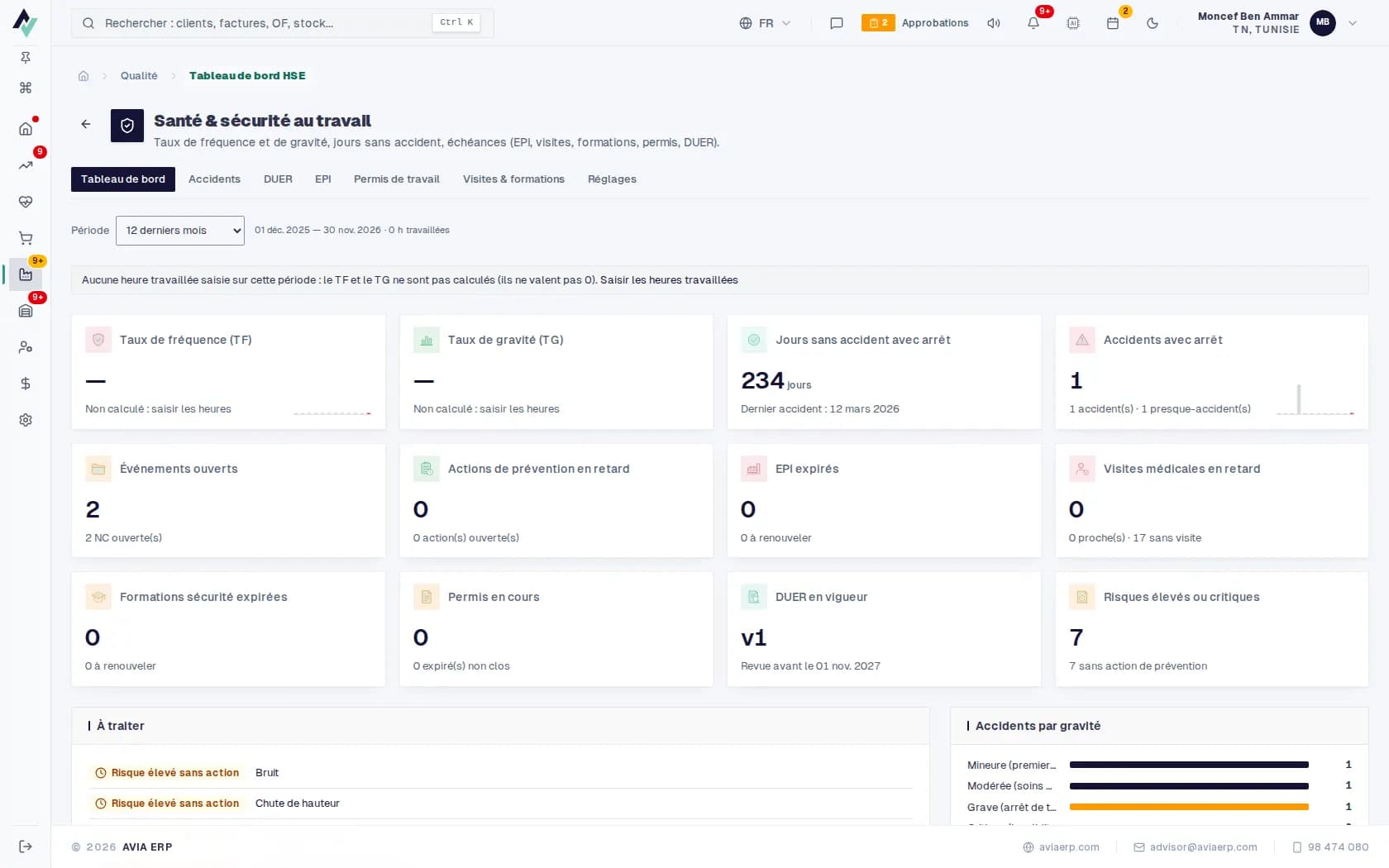
The dashboard gathers the indicators for a period (last 12 months, year to date, previous year):
- Frequency rate (TF): lost-time accidents per million hours worked.
- Severity rate (TG): lost days per thousand hours worked.
- Days without lost-time accident, since the last accident with lost days.
- Due-date counters: open events, overdue prevention actions, expired PPE, overdue medical visits, expired training, active permits, risk assessment in force, high risks without action.
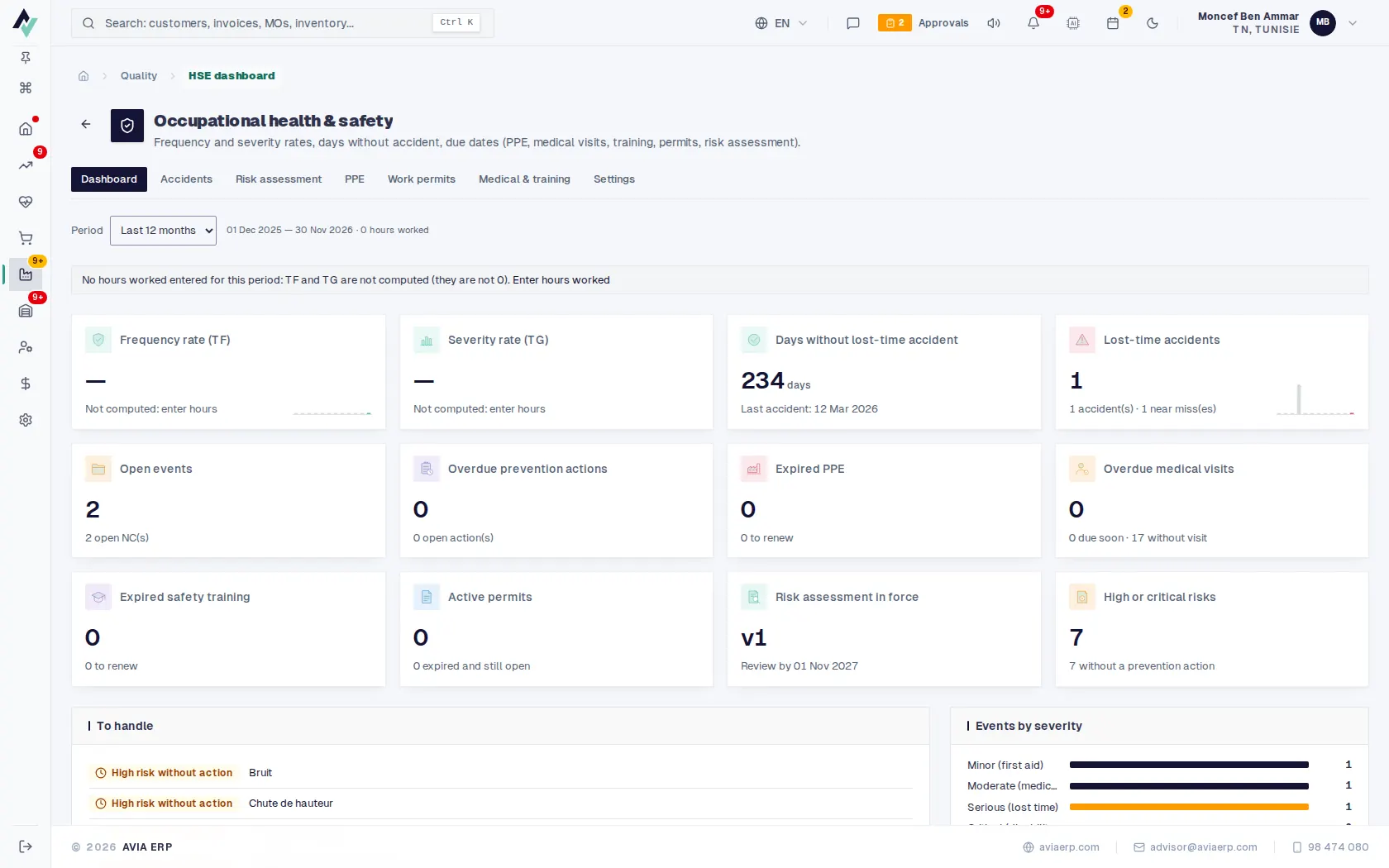
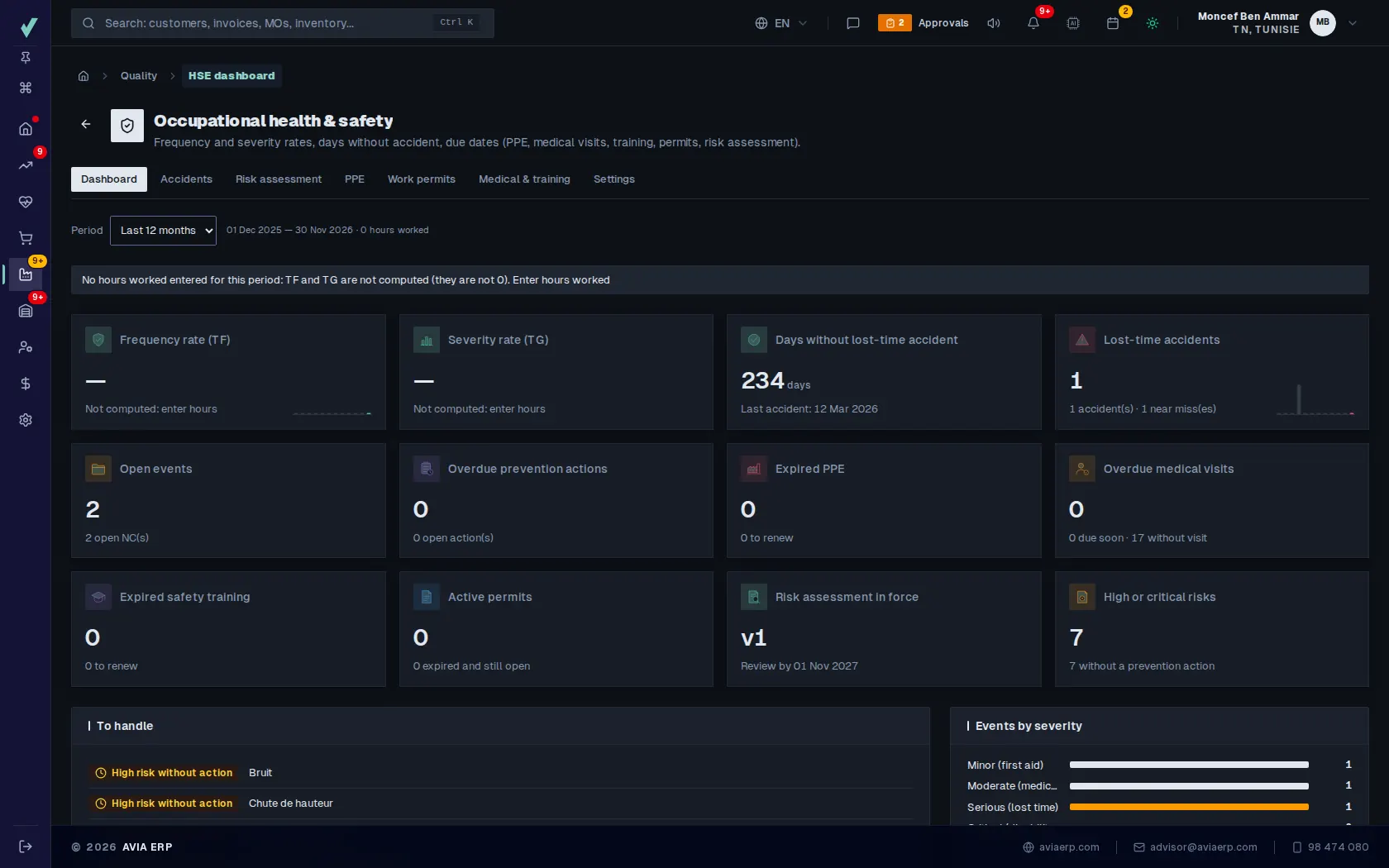
What the screenshot shows is deliberate: the demonstration company has entered no hours, and AVIA prefers a dash to a wrong rate.
4. Assess risks, in Risk assessment
The single risk assessment document starts as a draft. In it you describe work units, then risks rated severity × likelihood on a 1-to-4 grid, with a residual rating after actions. The initial and residual matrices read side by side. Each risk receives prevention actions, with a mandatory owner and deadline.
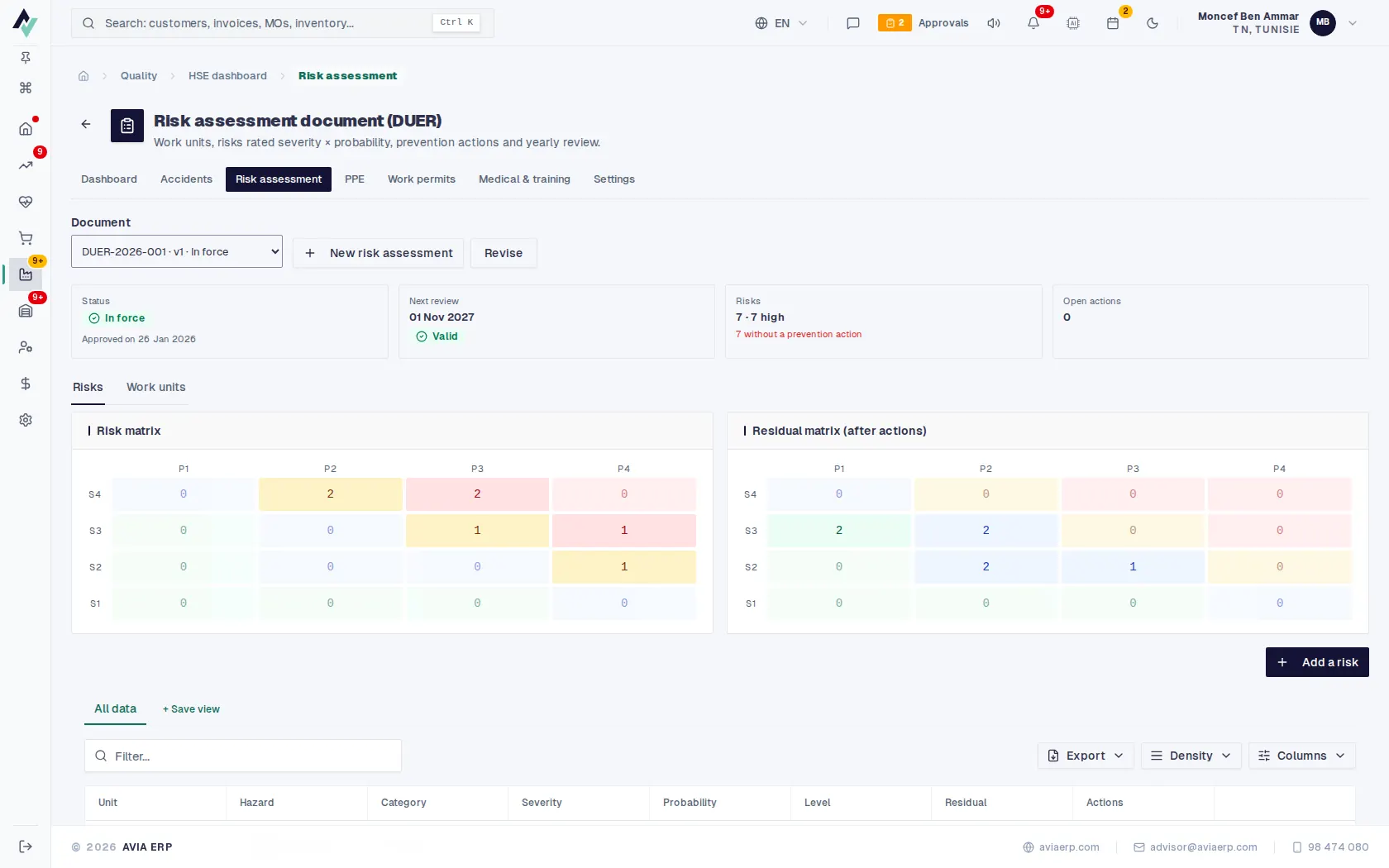
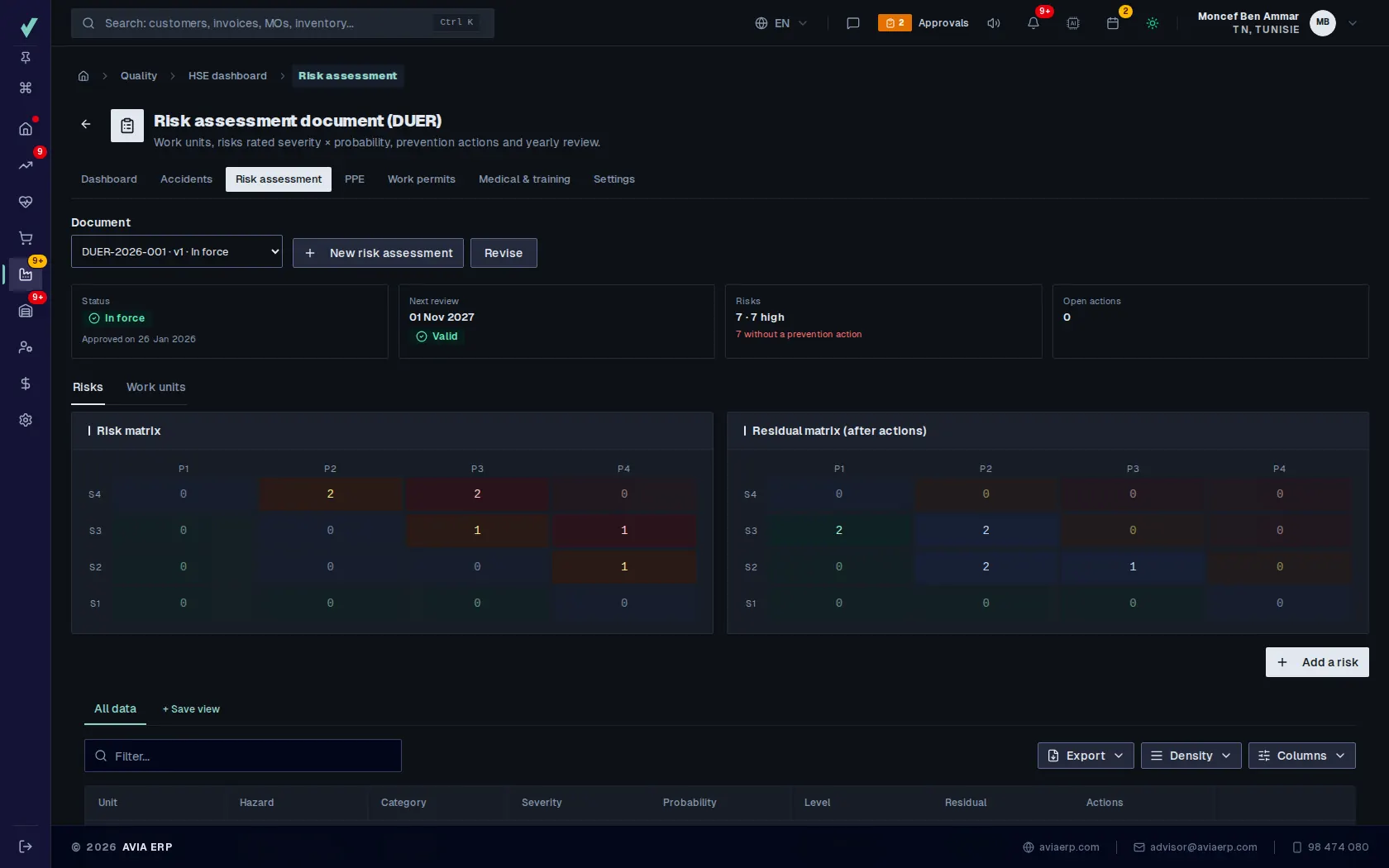
Publish puts the document in force: the approval and the review date are set by the server (twelve months by default), and the previous document is archived. A document with no risk at all cannot be published. Revise creates a draft of the next version, which carries over the risks and the unfinished actions.
5. Control PPE, in PPE
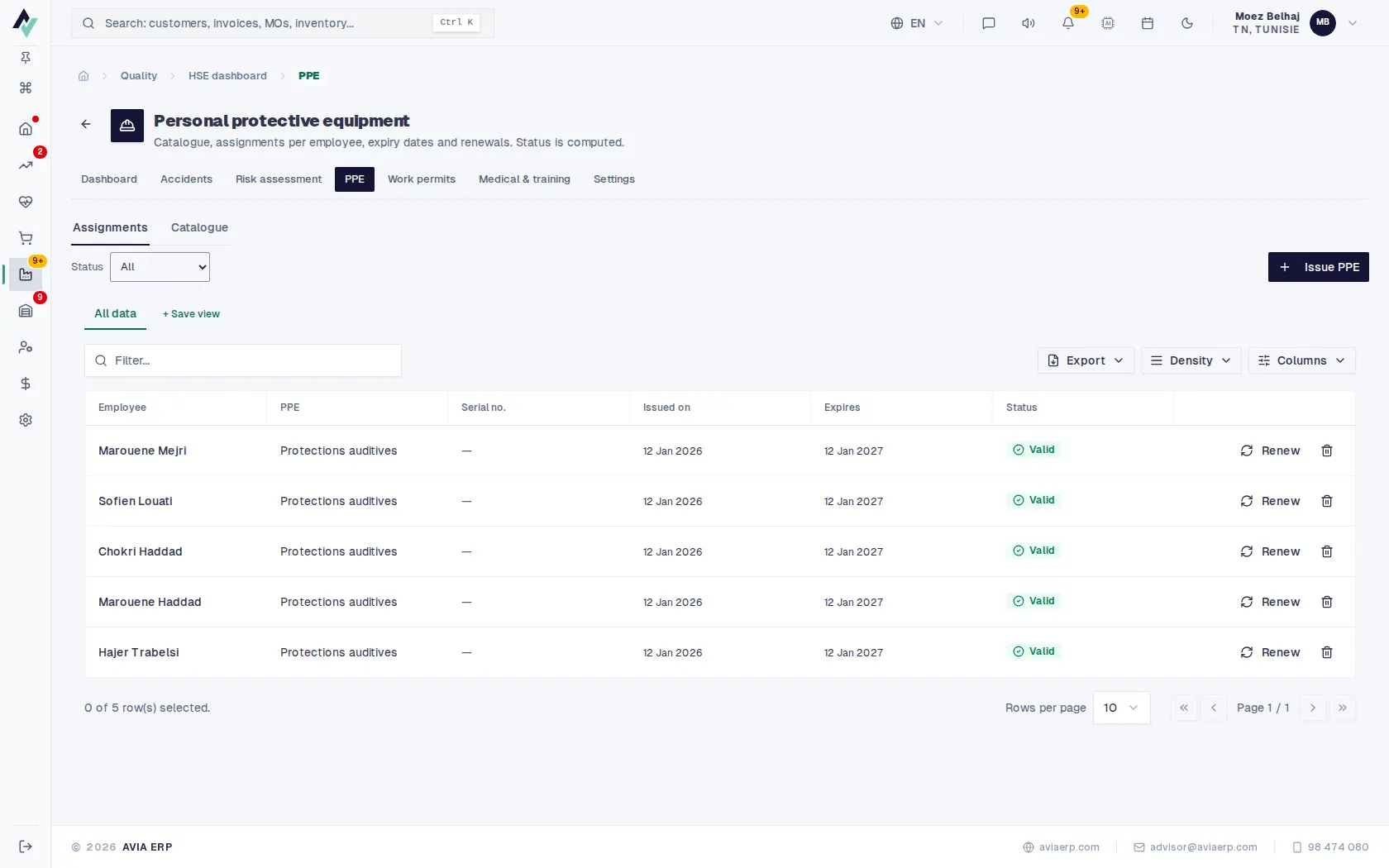
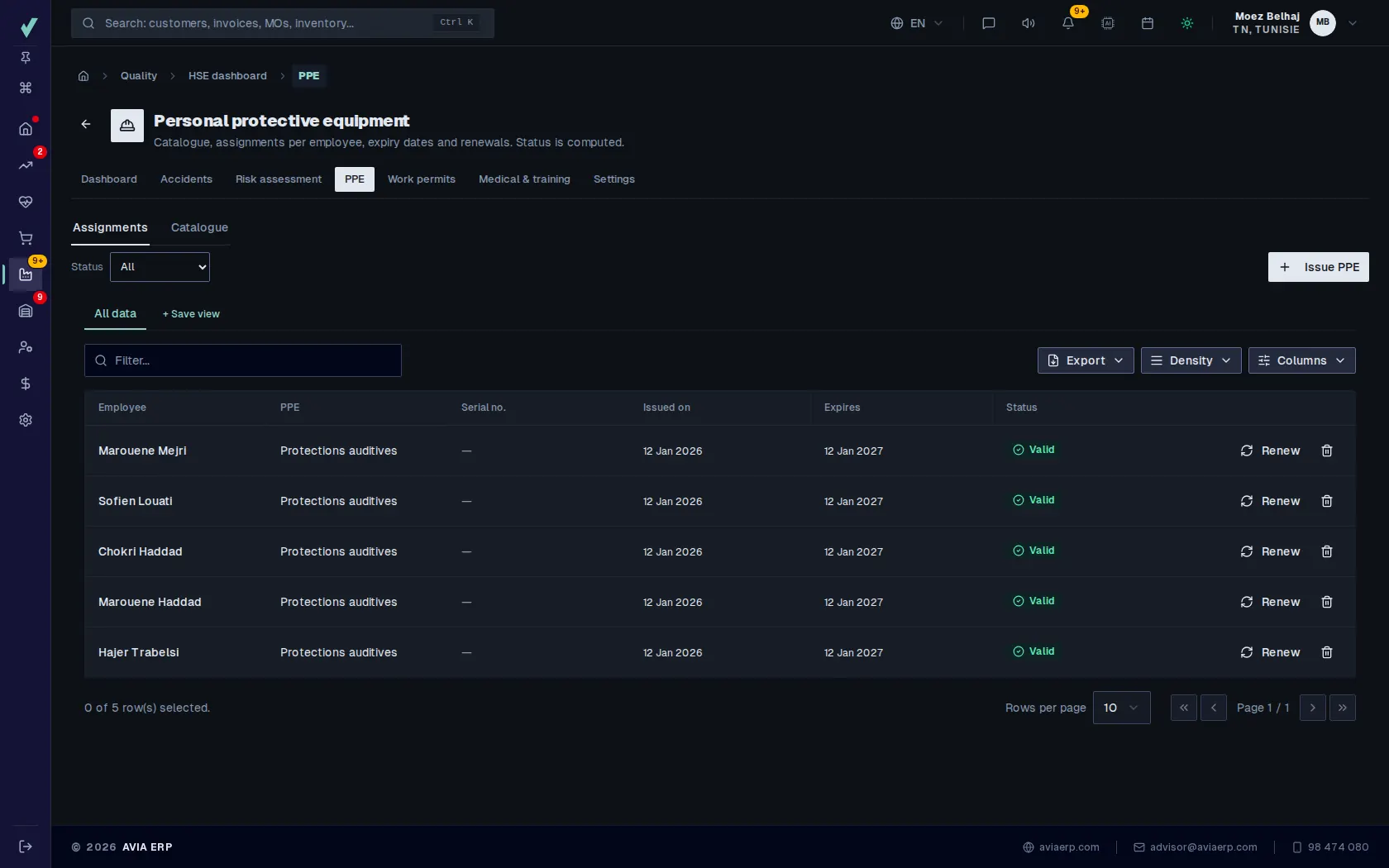
The catalogue describes each type of equipment (family, standard, service life in months). Each assignment links an employee to a type: if you leave the due date empty, it is deduced from the service life. The status — valid, expiring soon, expired, returned — is calculated; the “Renew” button issues the next assignment.
6. Follow medical visits, in Medical & training
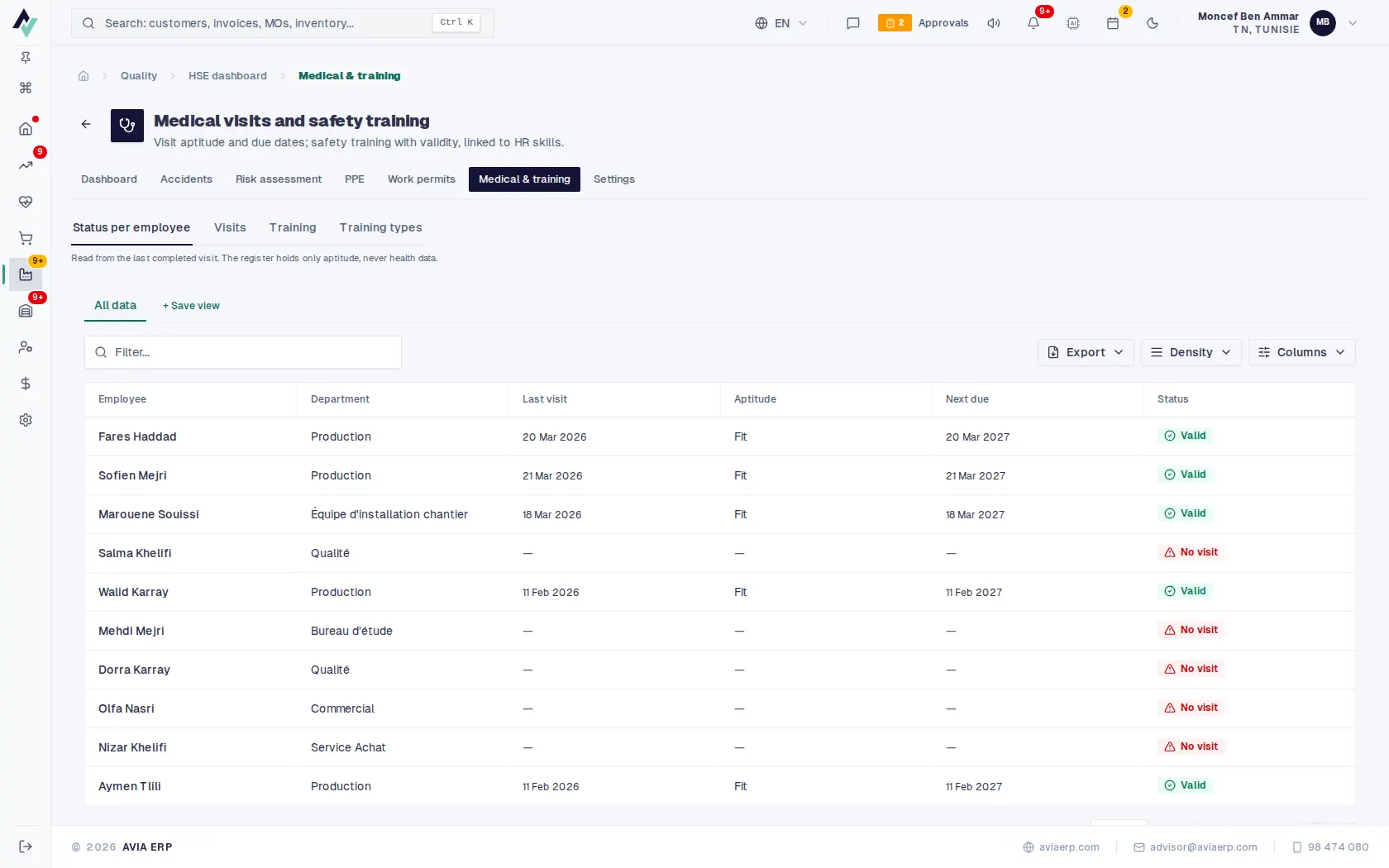
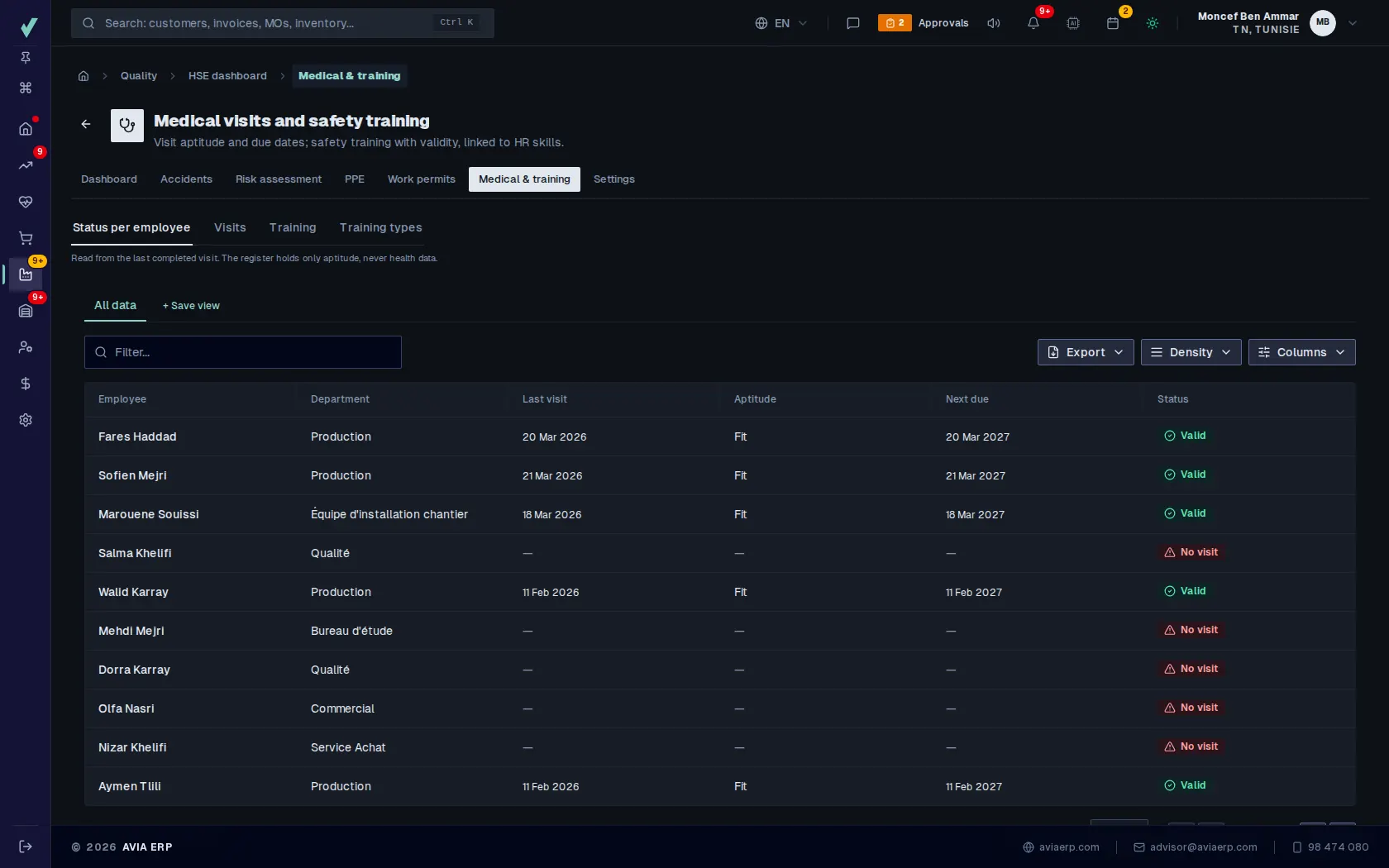
The “Status per employee” tab is read from the last visit performed: fitness, next due date, status. The register contains only fitness, never health data; the restrictions entered are workstation adjustments, not diagnoses. The default frequency is set in months in Settings. Safety training, with a validity period, links to the skills of the HR matrix: a passed training certifies the linked skill.
7. Frame hazardous work, in Work permits
Permits cover hot work, confined space, work at height, electrical work, excavation, lifting. A permit follows a path imposed by the database: draft, requested, approved, in progress, closed (or rejected, cancelled, with a reason). Each type comes with its checklist (safety talk, extinguisher, fire watch; controlled atmosphere, rescue plan; anchor points, harness; lockout…) whose mandatory points must be ticked before approval. The requester cannot approve their own permit, at least one worker must be assigned, the duration is capped by the “maximum permit duration” setting, and closure requires a report and confirmation that the area has been restored.
No screenshot of this screen here: the demonstration companies have no permit on record, and we do not show an empty screen.
Two business rules check a permit's workers, at approval, at start and when a worker is added:
- Valid required PPE for each worker(
epi_valide): for each PPE the permit requires, the worker must hold an assignment that is issued, not returned and not expired. - Up-to-date medical visit for a permit’s workers(
visite_medicale_a_jour): each worker must have an up-to-date visit and must not be declared unfit. This rule stems from a legal obligation that varies by country: AVIA deliberately attaches neither a text nor a time limit to it, and its settings remain to be validated with your occupational physician.
Both work in Observe mode by default: the permit goes through and the gap is logged. In Block mode, the permit is refused and the message names the missing workers and PPE. Start in Observe, review the gaps, then block once assignments and visits are up to date. Rules are set in Settings › Business rules (the link is repeated in the module's Settings tab).
8. Report to management
The management review (Quality › Management review) includes an “Occupational health & safety” section that takes up the module's figures: hours, accidents and lost-time accidents, lost days, near misses, TF, TG, unclosed events, overdue prevention actions, expired PPE, overdue training, overdue permits not closed. If the module is not deployed, the section says so and invites you to write the summary in the comment: no figure is invented.
By sector
The most telling demonstration data comes from a special-machines workshop: a grinding accident whose cause (gloves not worn) becomes a non-conformity, a lifting near miss of potential severity “serious”, a risk assessment whose risks — welding fumes, fall from height, lifting, electrical risk — are those of an assembly site. For this sector, AVIA ships a rule pack ready to apply, with its rules switched off: you simulate it, then switch the rules on one by one.
The demonstration textile workshop illustrates the PPE catalogue and assignments. See also ERP for textile.
Summary, from the requirement to what you see:
| Requirement | AVIA screen | Rule | What you see |
|---|---|---|---|
| Identify risks | HSE › Risk assessment | Severity × likelihood rating calculated by the database; an empty document cannot be published | Two matrices, the upcoming review, high risks without action |
| Handle events | HSE › Accidents, then the linked non-conformity | Automatic opening of an NC at the severity threshold set in Settings | The NC number in the record, the root cause handled on the NC |
| Measure performance | HSE › Dashboard; Settings (hours) | No hours, no rates | TF, TG, days without accident; a dash as long as hours are missing |
| Control protective equipment | HSE › PPE | epi_valide (Observe or Block) | Calculated status, due date, renewal; gap logged or permit refused |
| Fitness and competence of people | HSE › Medical & training | visite_medicale_a_jour; habilitation_requise on the production side | Fitness and due date per employee, without health data |
| Control hazardous work | HSE › Work permits | Imposed sequence of steps, checklist, epi_valide, visite_medicale_a_jour | Permit status, points to tick, message naming the worker at fault |
| Report to management | Quality › Management review | “Occupational health & safety” section | The module's figures, or an indication that the module is not deployed |
What AVIA does not do for you
AVIA keeps the registers and enforces the rules you choose; it does not write your safety policy, does not rate risks for you and is not ISO 45001 certified. No regulatory reference is built into the medical visit rule: your country's frequency and obligations are to be entered and validated. The frequency rate and the severity rate follow the formulas described above; if your official declaration requires another one, it is calculated separately. Finally, the ISO 45001 clause associated with the epi_valide rule in the catalogue is a suggestion, not a validation.
Going further
The overall reasoning of a tooled management system is in ERP and ISO 9001: facing your quality audit without dreading traceability. The handling of the root cause of a non-conformity is detailed in Six Sigma in AVIA. How rules work (scopes, modes, simulation) is described in the business rules documentation and on the business rules page. See also ERP for special machines.